Inquiries are Sympl’s way of helping you track any time a potential guest makes a request into your vacation property. This is a great way to stay on top of communication between you and your potential guests which will create more bookings.
Inquiry Creation/ Add Inquiry button:
If you are on any of these tabs: Inquiry Inbox, Inquiry List or Message tabs you will see an Add Inquiry button on the top-right corner of the page. Click this button.

This will open the Add Inquiry dialogue box. Here you can enter guest details, Date details, and any Discounts or additional Fees. Once you’ve entered all the relevant information, click the “Save Inquiry” button at the bottom-right of the dialogue box.
There are also options to Save & Send Quote via Email or SMS.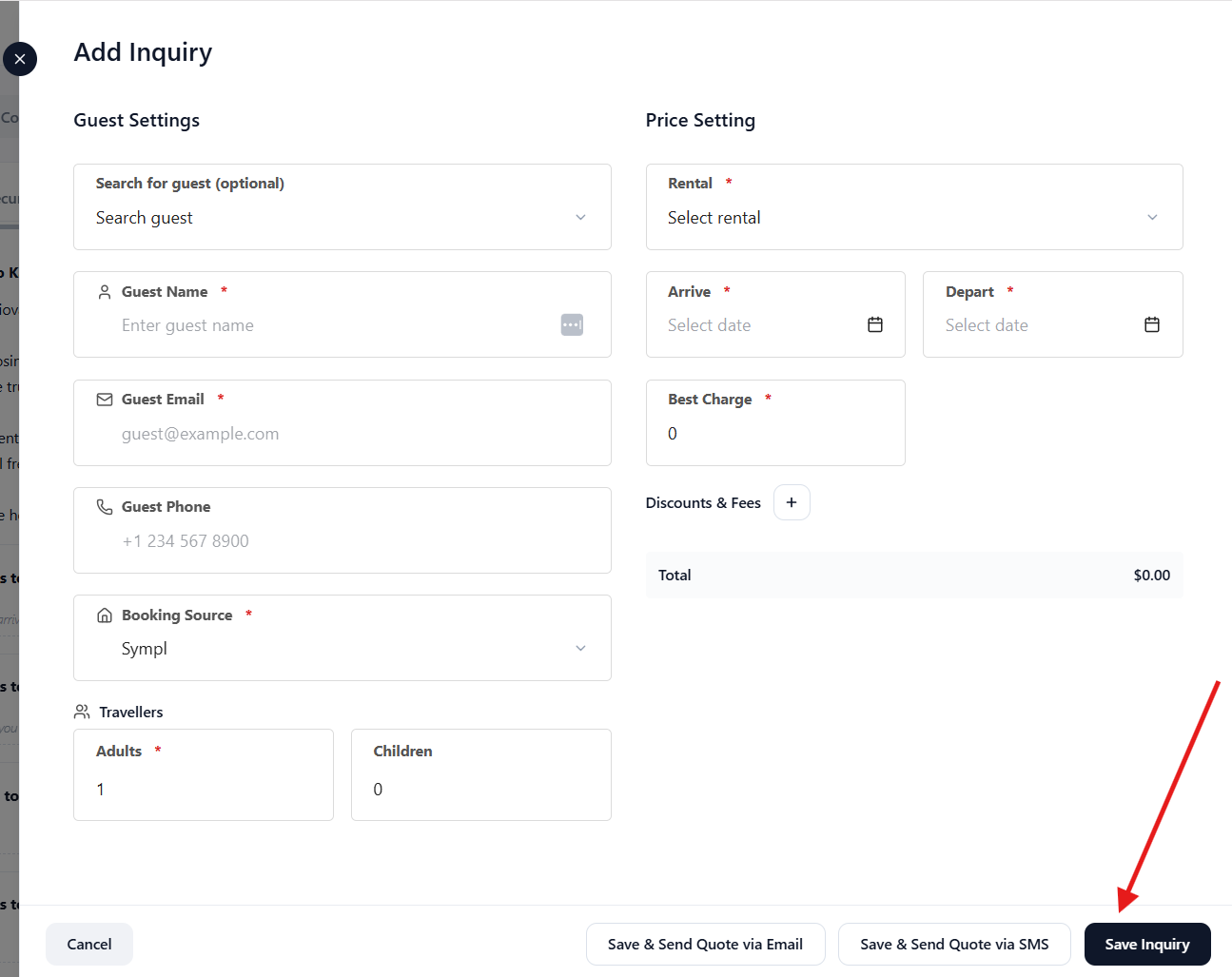
Congratulations! You’ve just created an inquiry with Sympl. You will then be redirected to the Inquiry List View page.
Inquiry List View:
Select Inbox from the top navigation menu, then select Inquiry List.
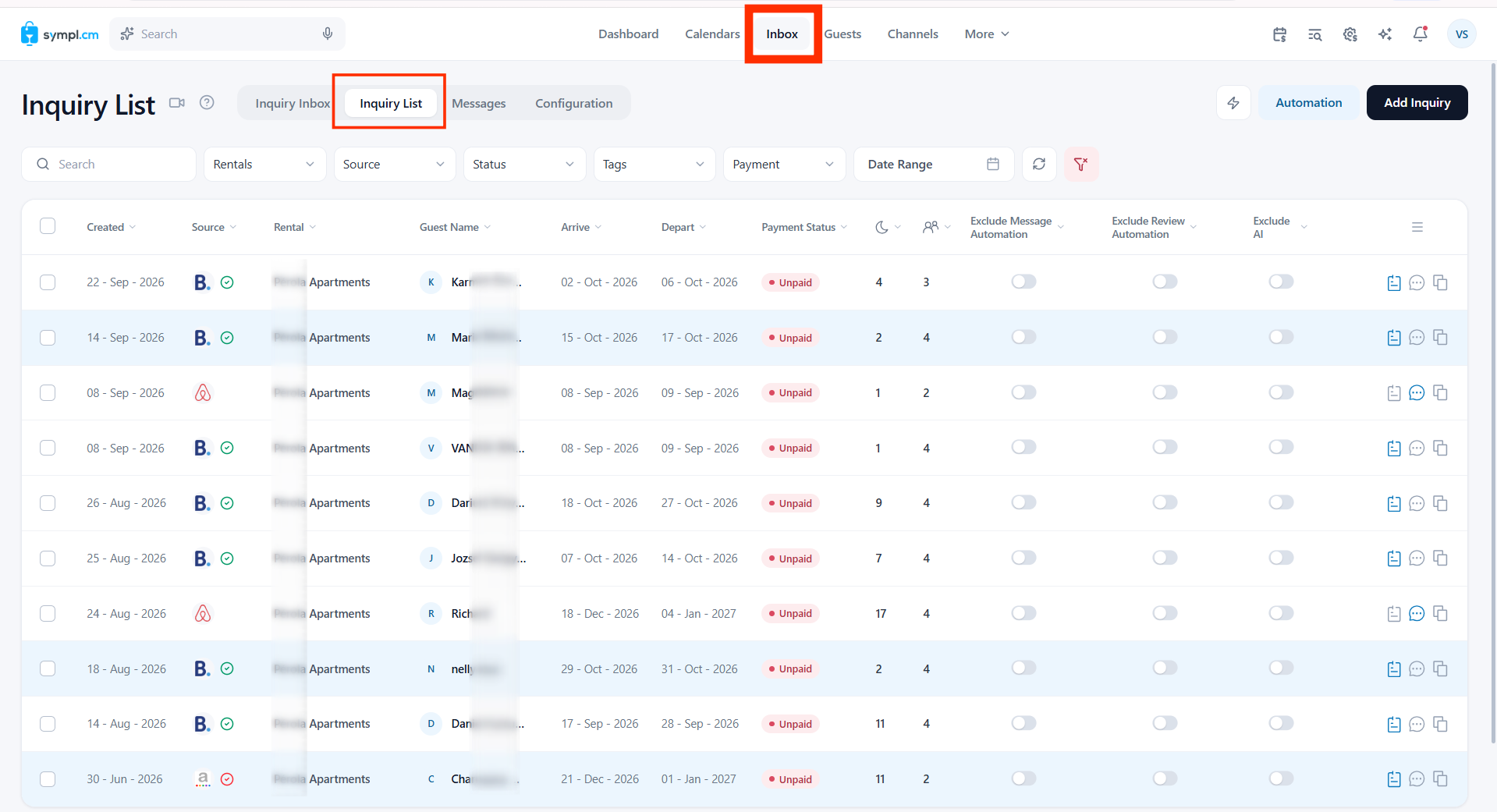
The Inquiry List View is the most versatile view, that allows you to do anything with your bookings and inquiries without leaving the screen. The list view is the preferred view for activities that include, modifying bookings, deleting bookings or adding tags to organize your bookings. The reason for this is that the inquiry list view allows you to filter, select multiple items within the filter range and perform an action within the Actions menu that will affect all selected items.
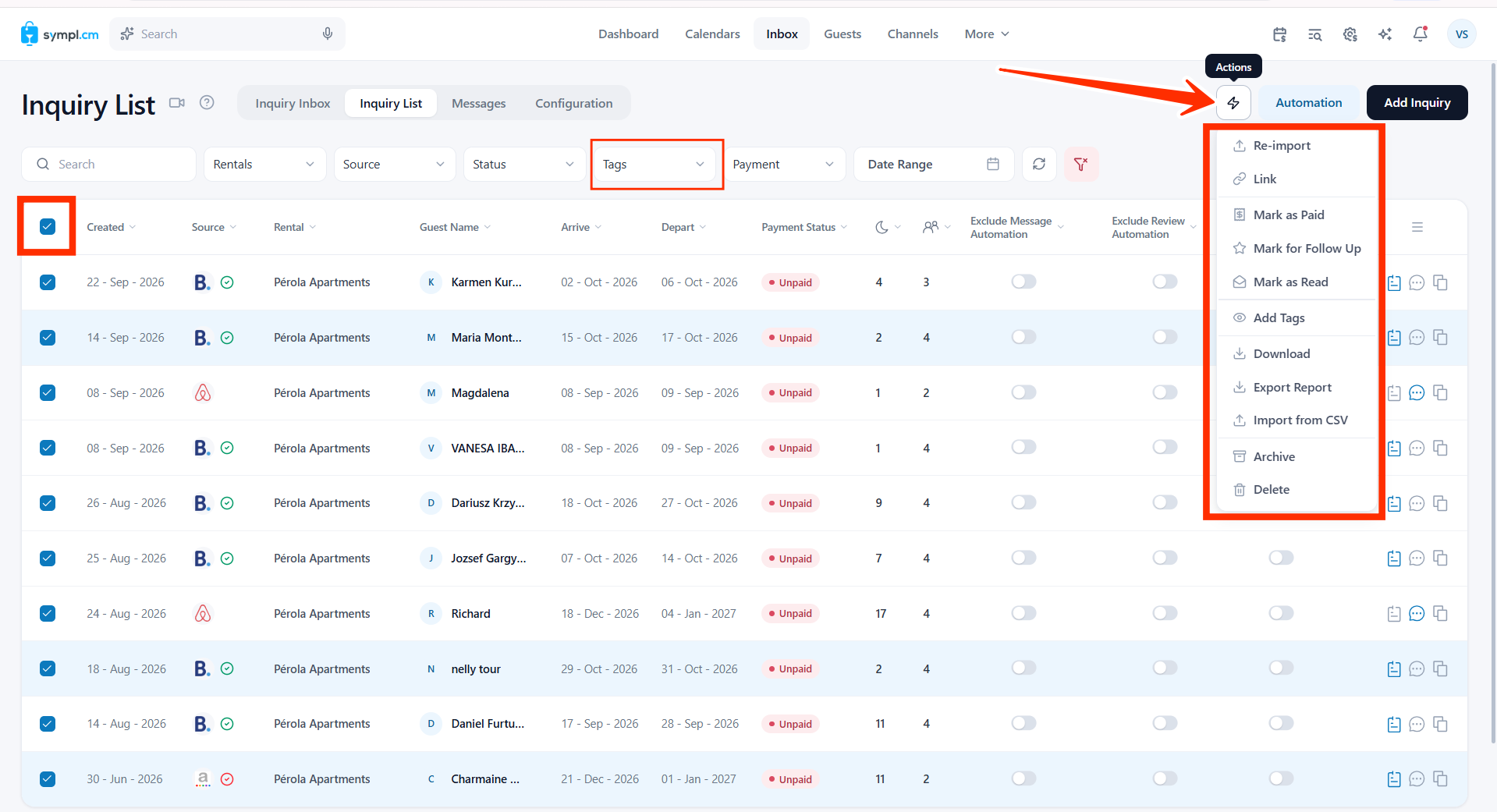
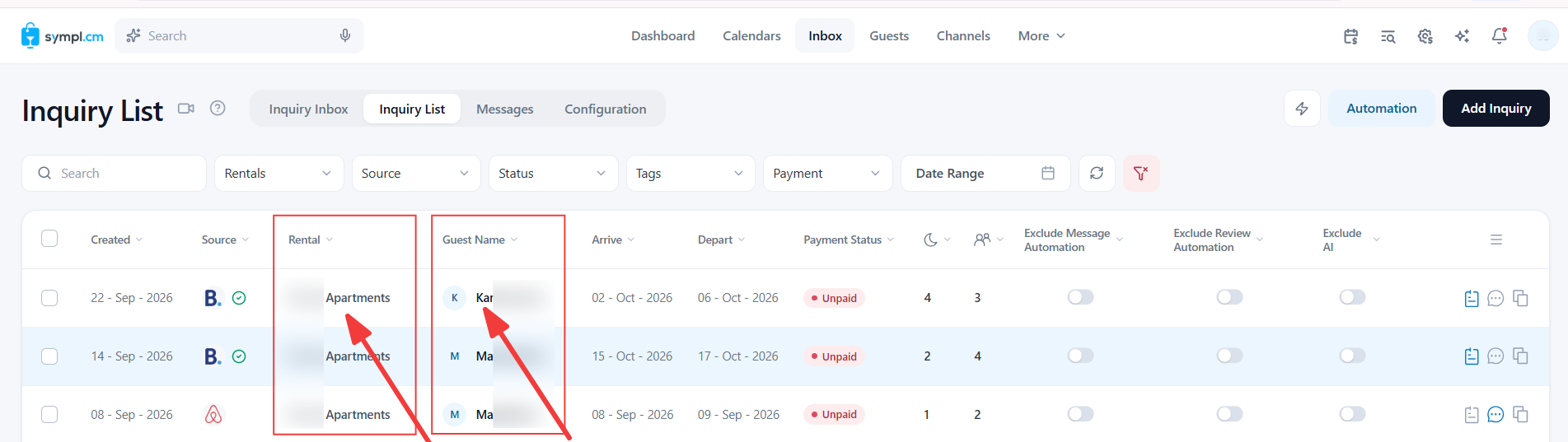
Clicking on the Rental and Guest columns will serve as shortcuts to open the details of the rental or guest.
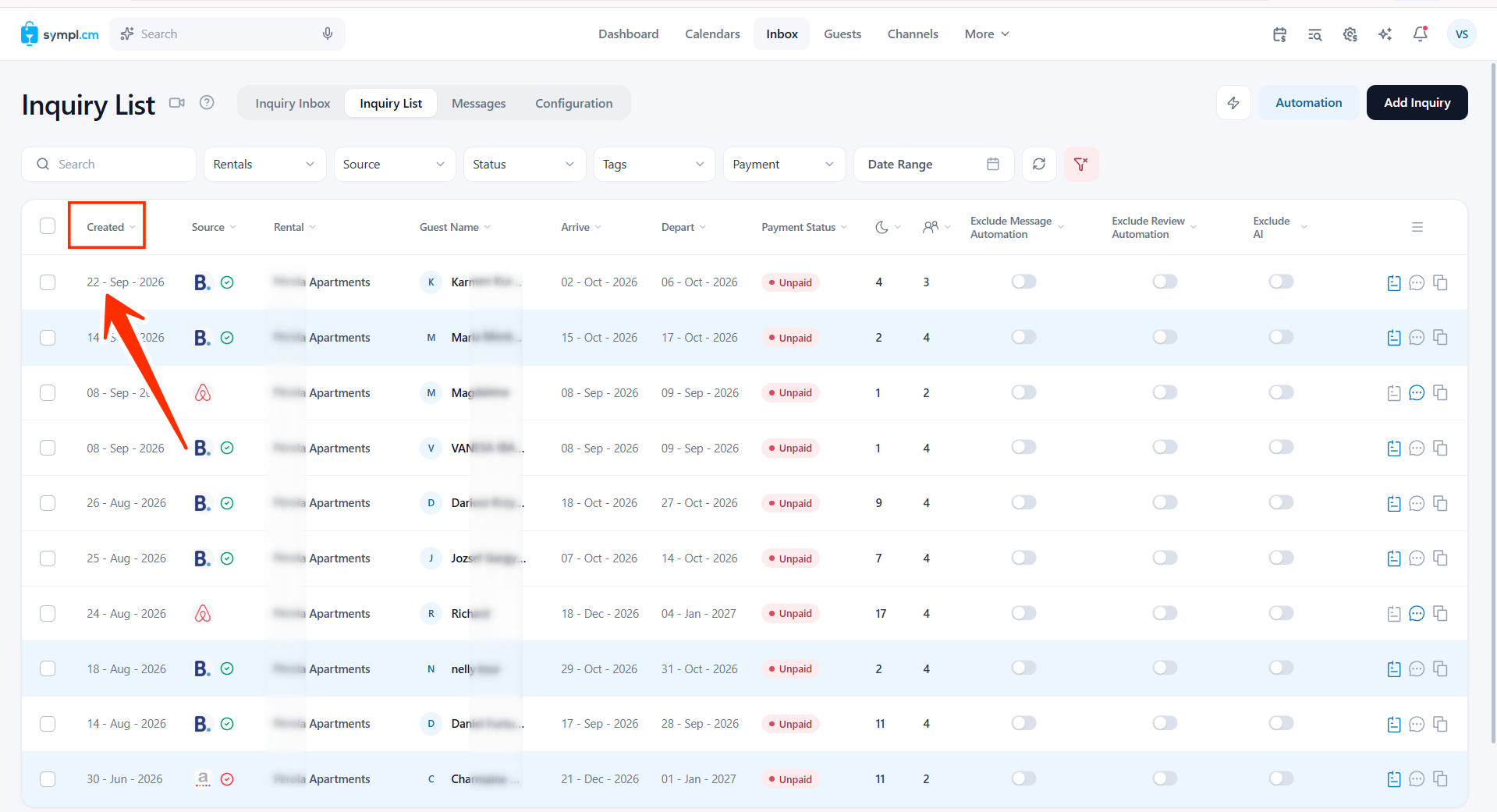
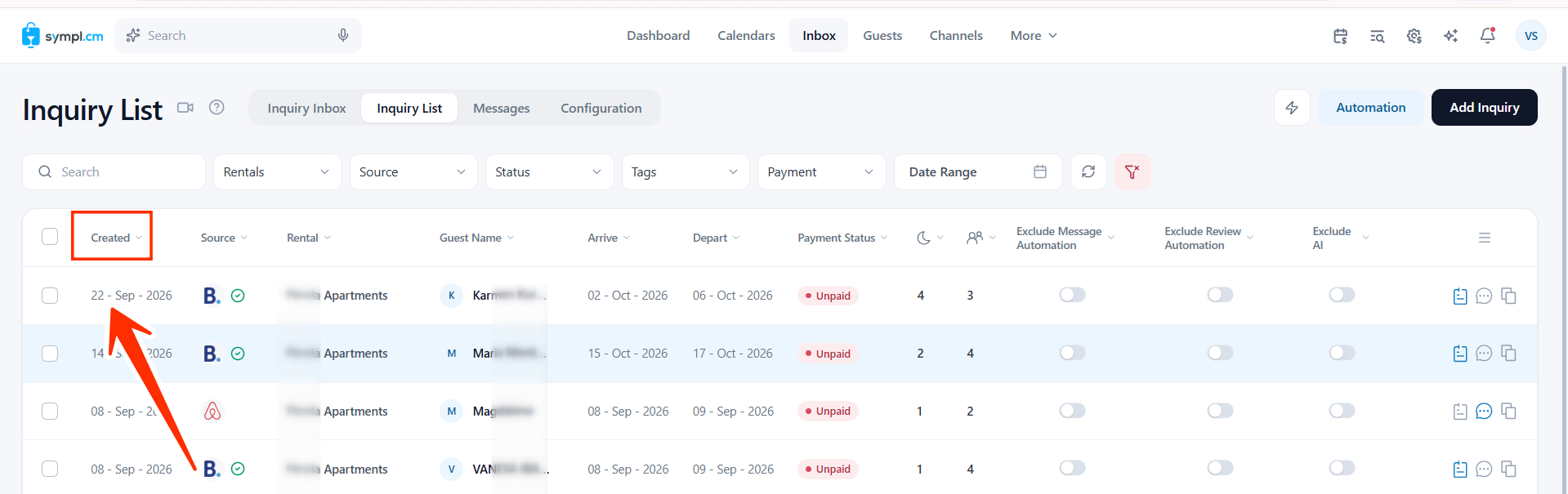
You can also click on the Created column to open the booking overlay to see the inquiry details.
Inquiry Details View:
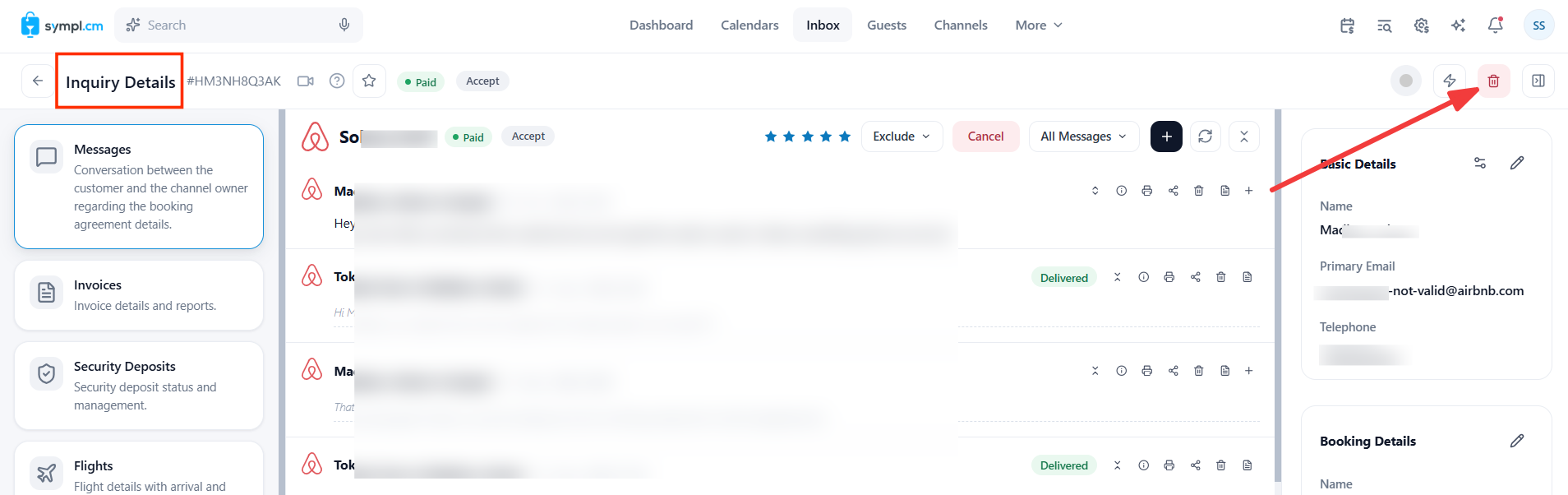
By default the record view of every first Inquiry is displayed.
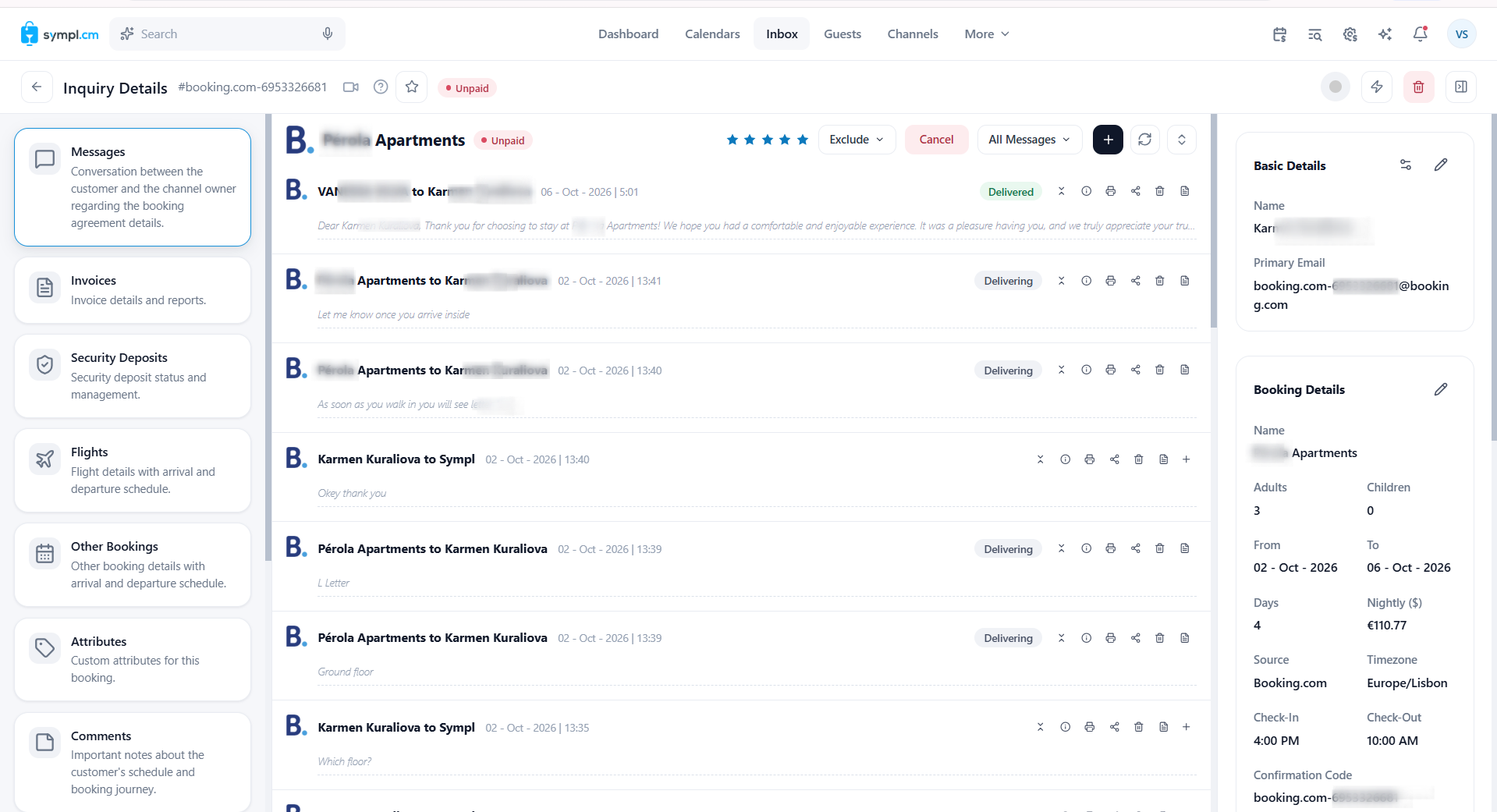
You will be allowed to add information on the following tabs on the left, Any data already added for the open inquiry will appear automatically in the tabs:
Messages
Invoices
Security Deposits
Flights
Other Bookings
Attributes
Comments
Logs
Reviews
Tasks
ExpensesAll the information related to the opened inquiry will be displayed on the right panel under different sections. You will be allowed to update the information directly from these sections.
Basic Details
Booking Details
Booking Charges
Occupied Dates
Access CodeIn the booking details overlay, there is an Actions menu, similar to the one on the main Inbox page.
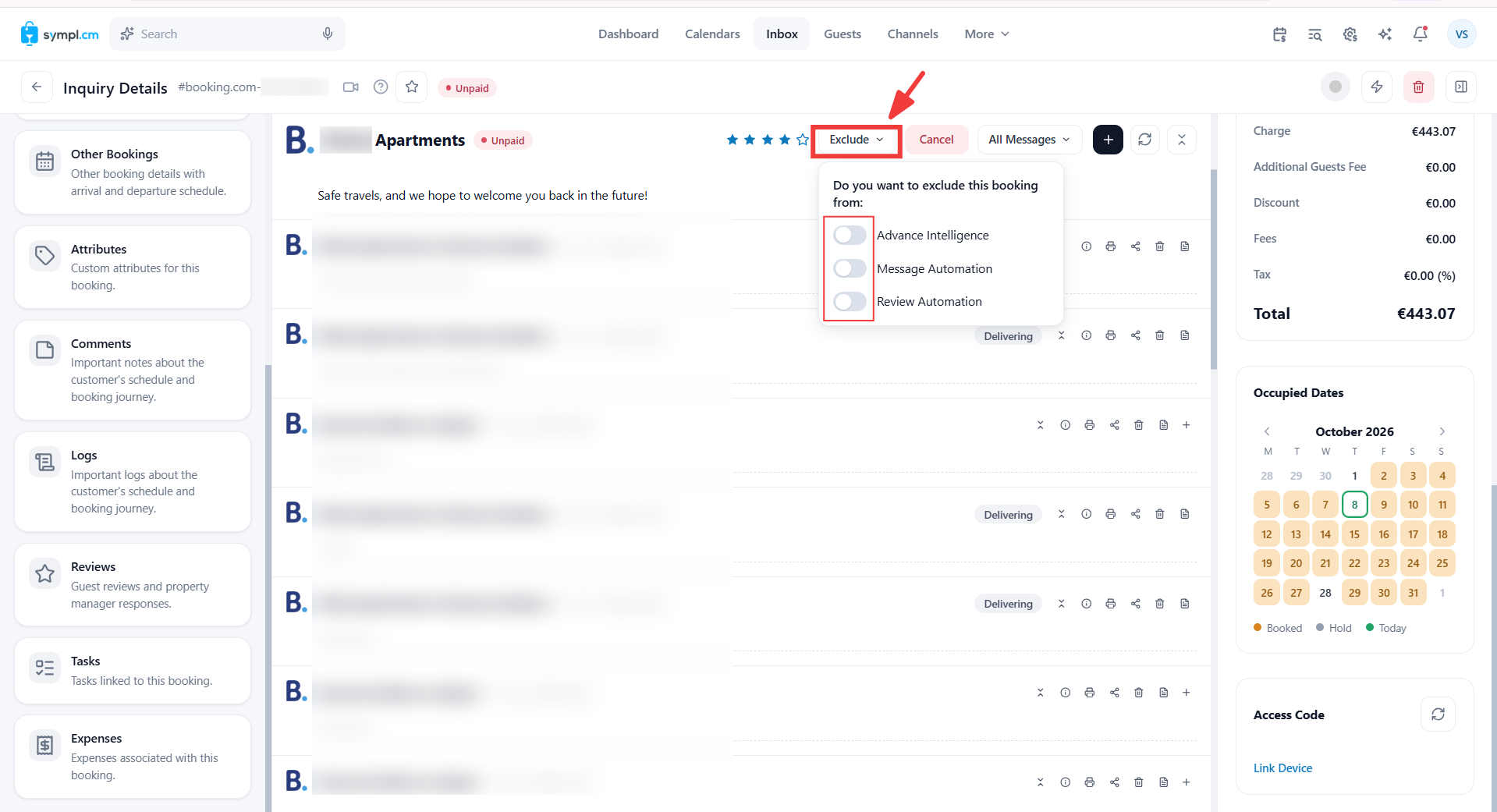
You can also exclude the booking from certain Automations or rate the guest.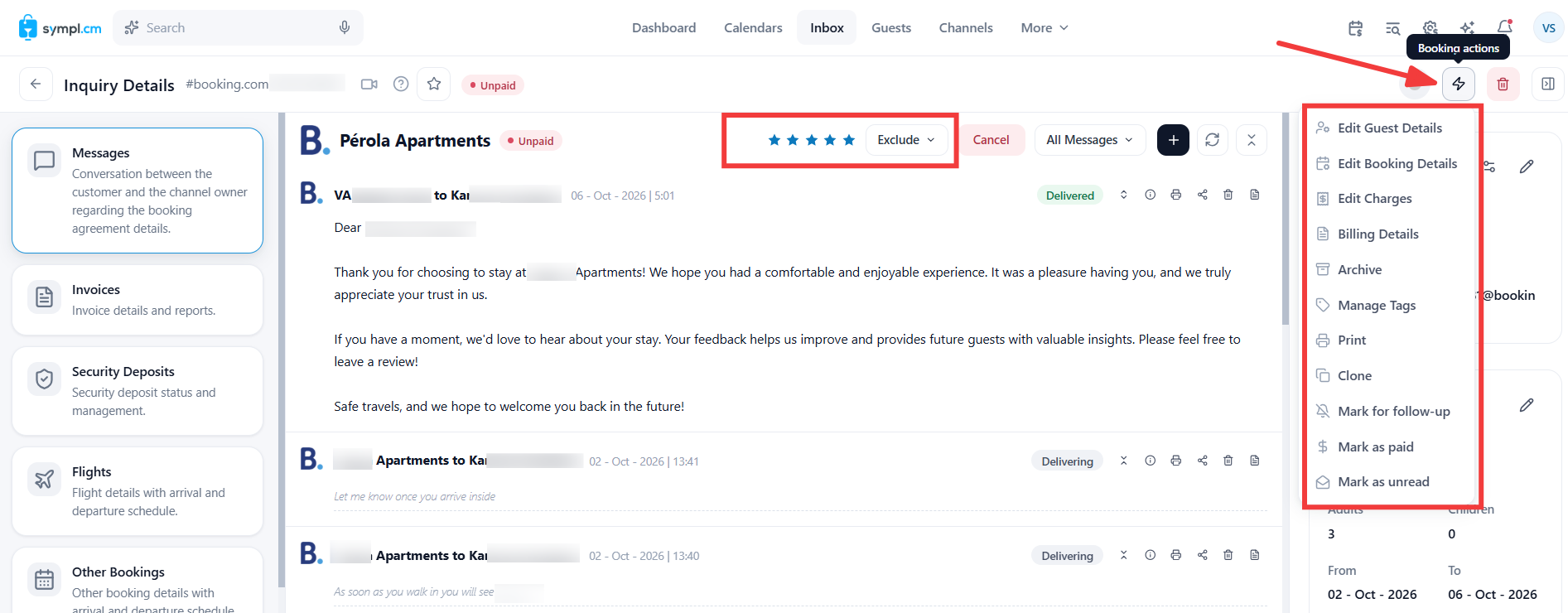
How to exclude a booking from Review or Message Automation?
In the Inquiry Detail Overlay you can find an Exclude button. Click on the dropdown to enable any of the toggles for excluding the booking from Advance Intelligence messages, Automated messages or Automated Reviews.
Inquiry Inbox view:
This view also has an Actions menu at the top, but the available options are different from these on the Inquiry list view menu.
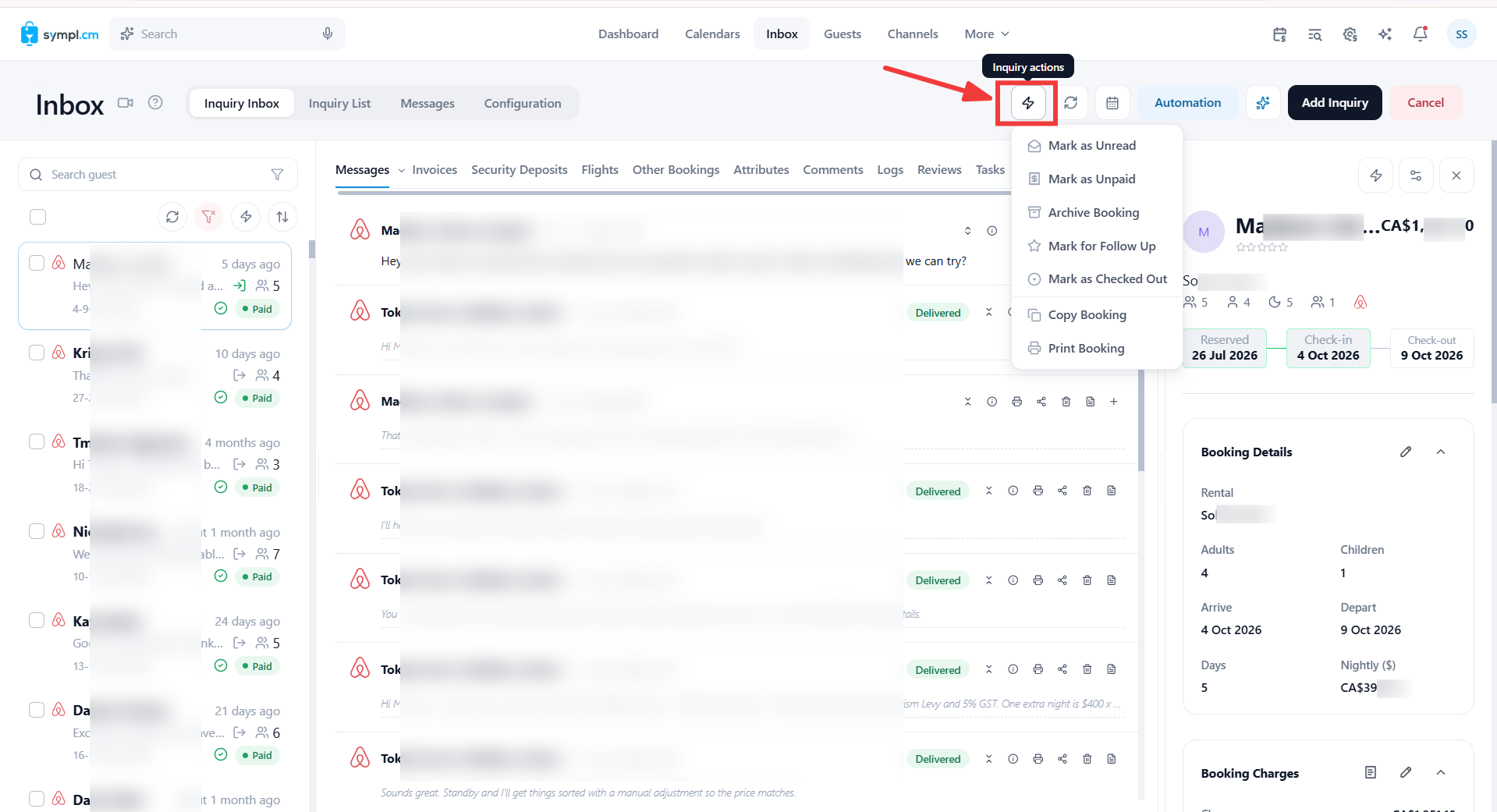
Read more about the Inquiry Inbox view in the article called Inquiry Inbox Overview.
Inquiry Deletion:
Deleting withdrawn or cancelled inquiries helps keep your workspace and calendar organized, making it easier to track current guest inquiries, identify available dates, and focus on potential bookings.
There are several different options to delete an inquiry from Sympl.
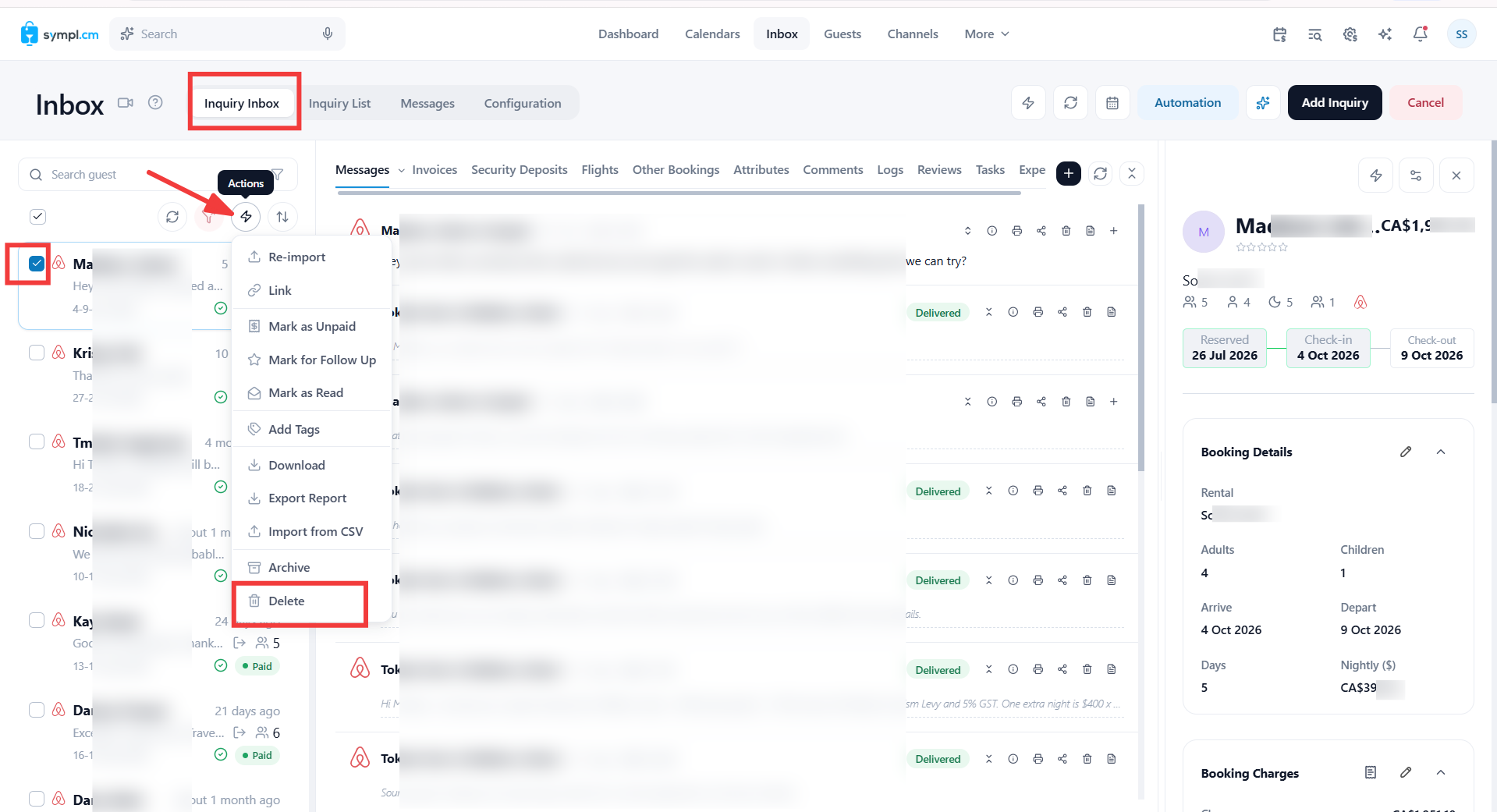
From the Inquiries Inbox top-left menu:
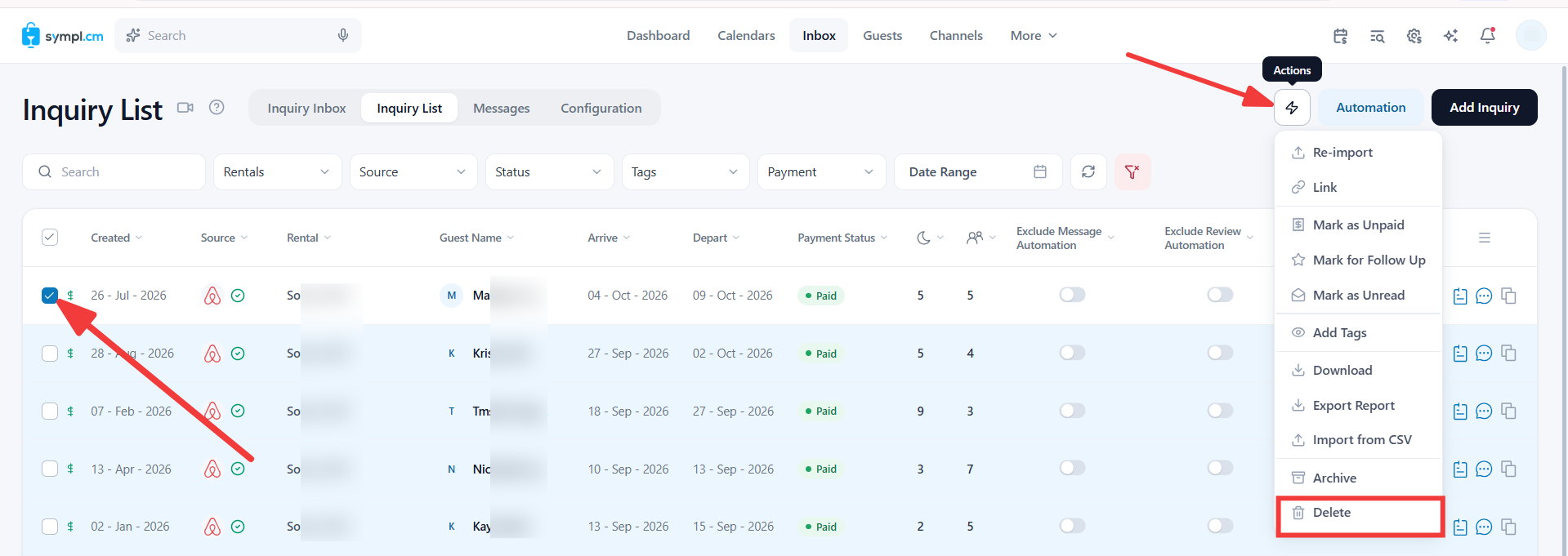
Check the box next to the inquiry you wish to delete, then expand the Actions menu and click on the Delete option.
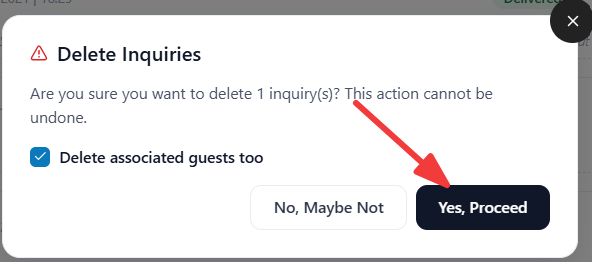
A Delete pop-Up will open up which will ask if you’re sure you want to delete the inquiry. It will also feature a box that can be checked if you would like to delete the guest’s information from all of your Sympl files. Leave this box unchecked if you would like to retain the guest's contact information in your Sympl Guest List.
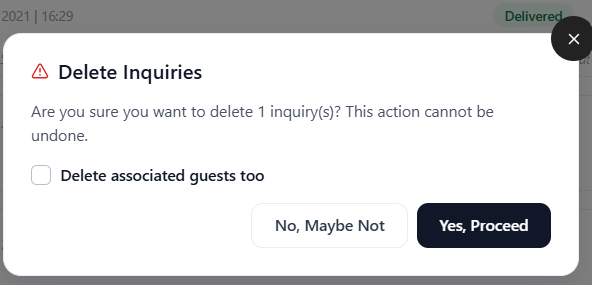
Select “Yes, Proceed” to delete the inquiry.
From the Inquiries List:
Method 1: You can search for the inquiry, select it, then delete it from the Actions menu on the right.
Method 2: Click on the Created column of the inquiry you wish to delete to open the details.
Use the red Delete button (trash icon) on the top right menu