Having a busy vacation rental operation means you're going to need some extra hands on deck - that's why Sympl is equipped to handle multiple users. If at any time you wish to add a new user to your account, simply follow the steps below:
Adding New Users to Sympl
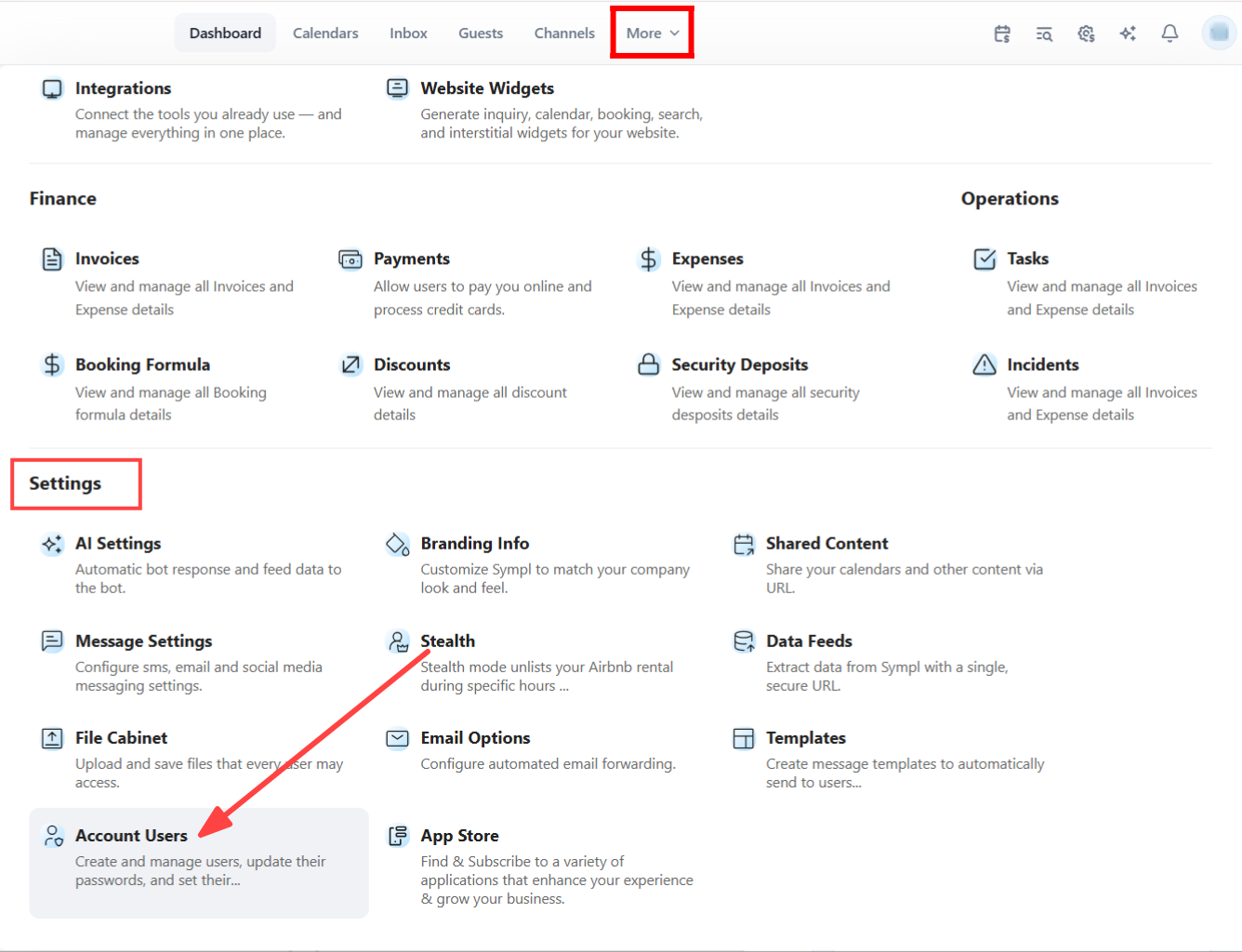
From the top menu, click the More dropdown, then navigate to the Settings section. Click on the Account Users option.
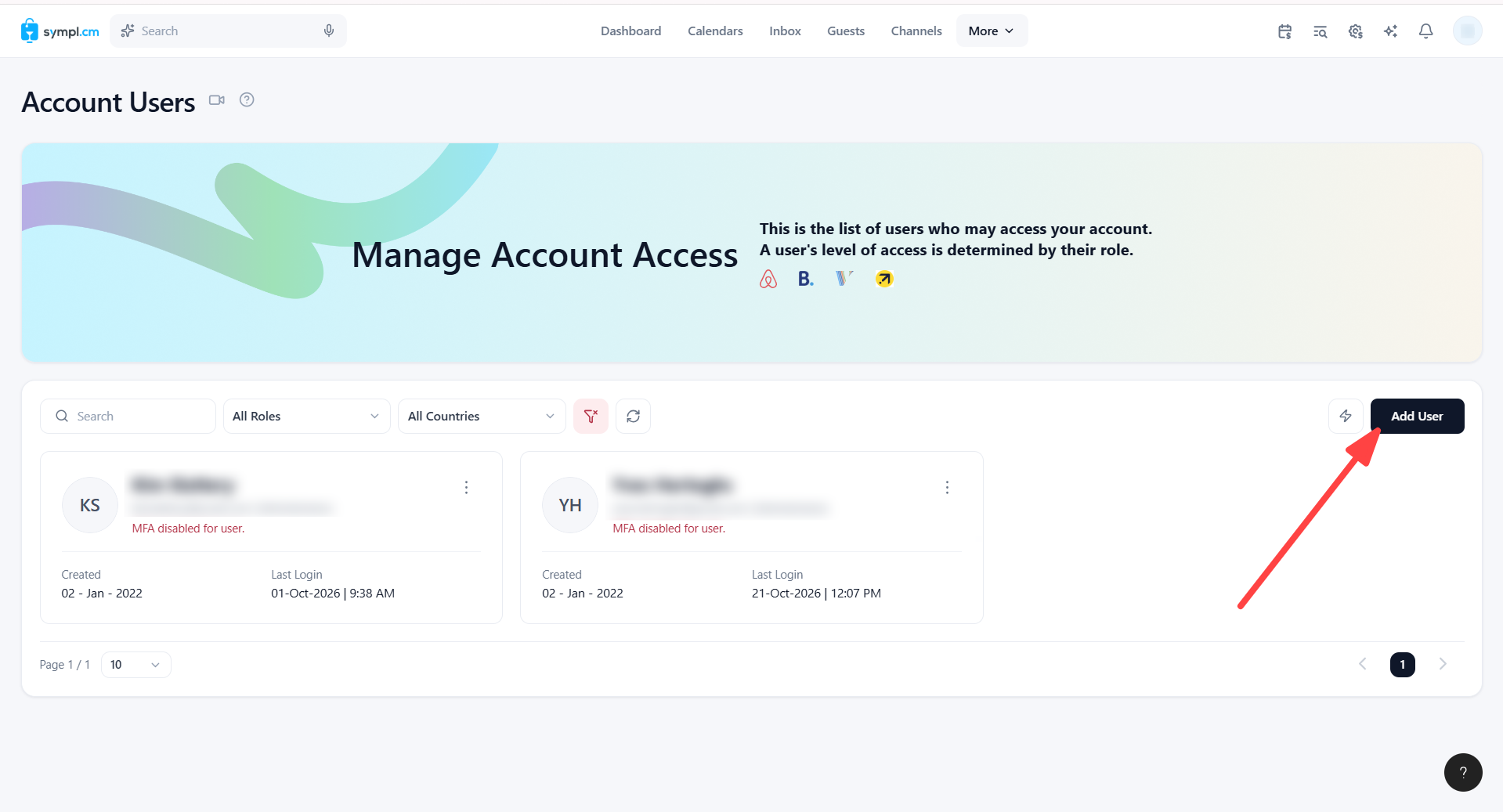
Click the black "Add User" button on the right to open the new user configuration overlay screen.
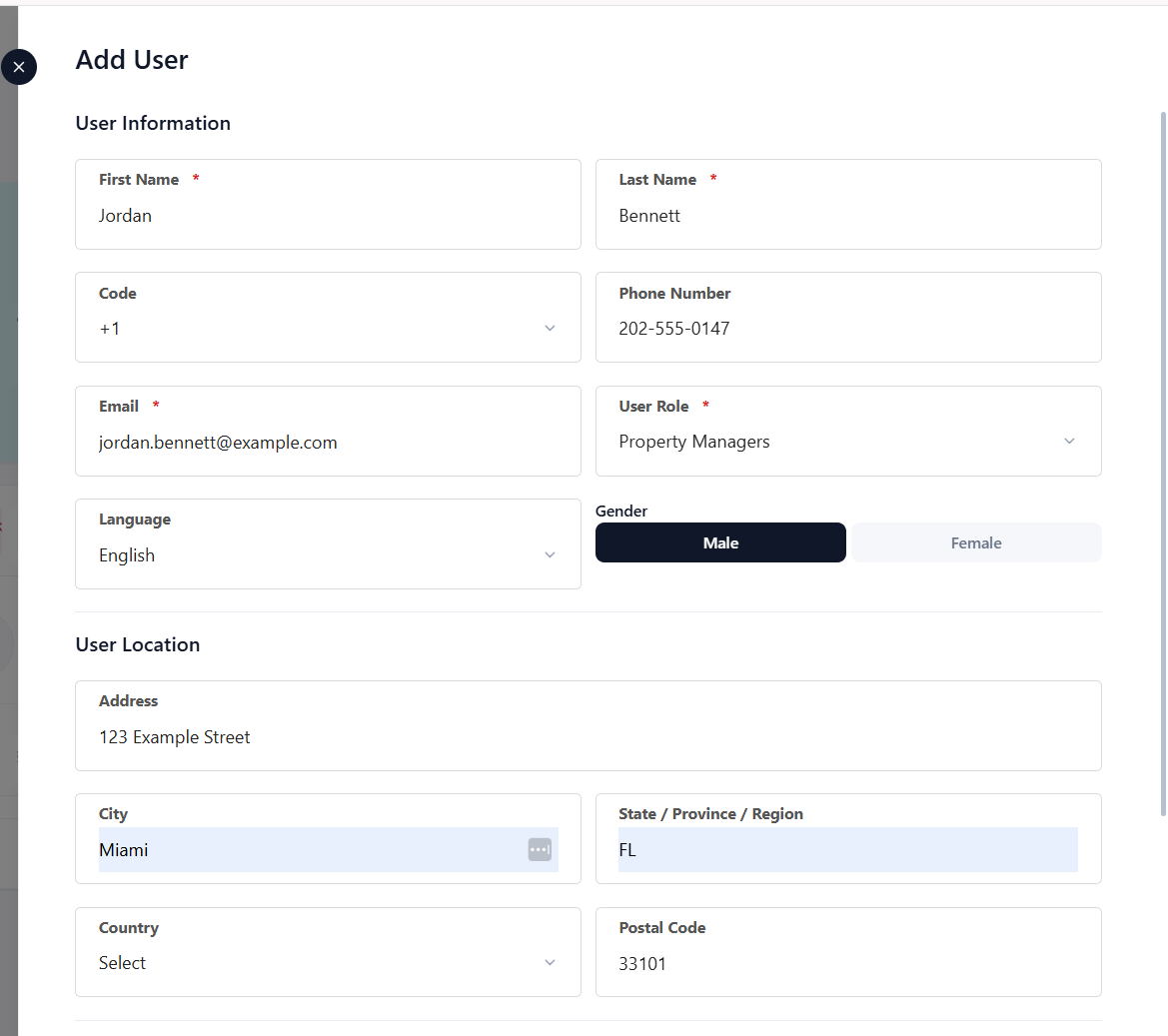
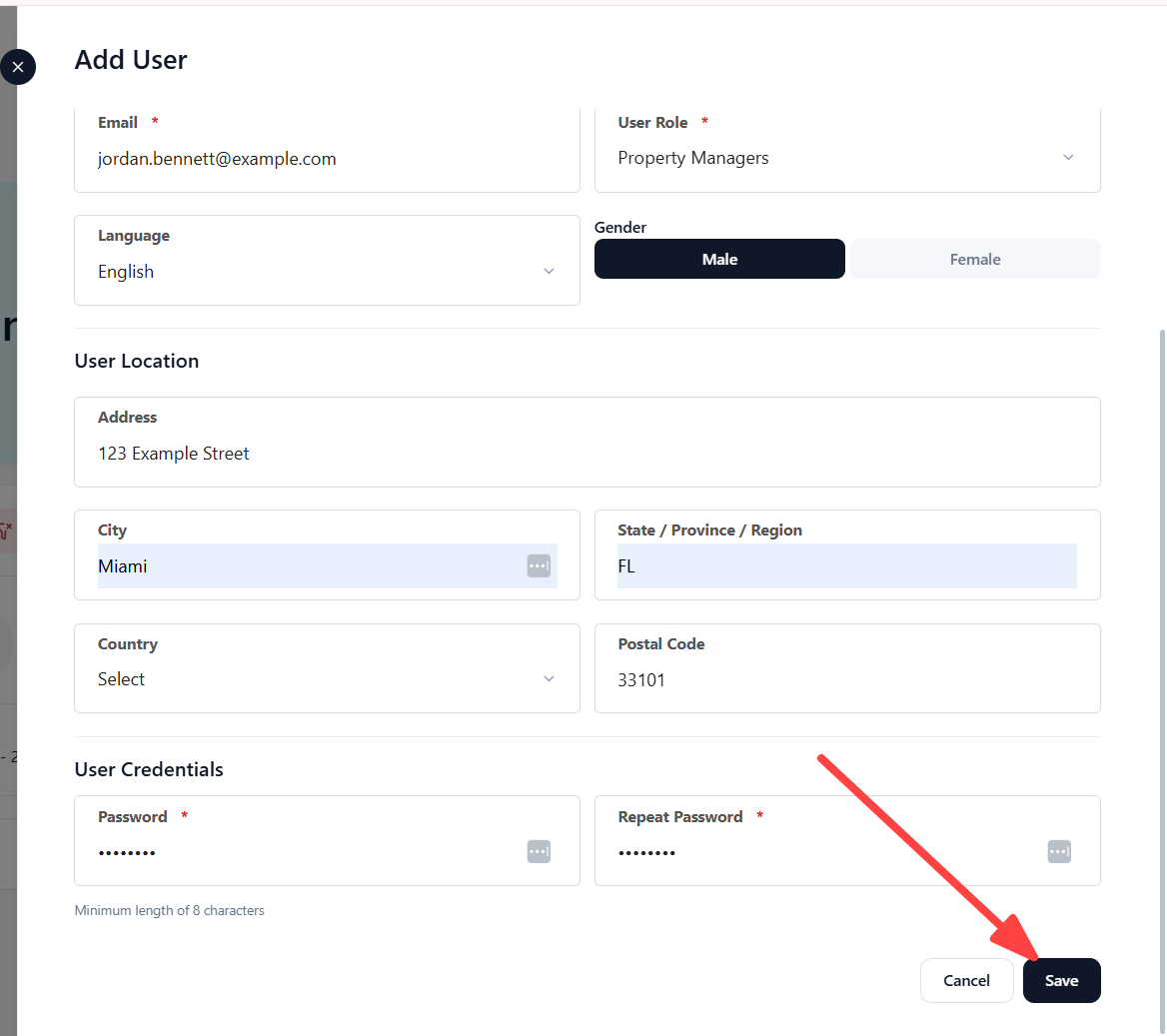
Enter your new user's details, including their designated user role.
When finished, click the black "Save" button on the bottom-right.
You should now see your user's card on the User Settings page.
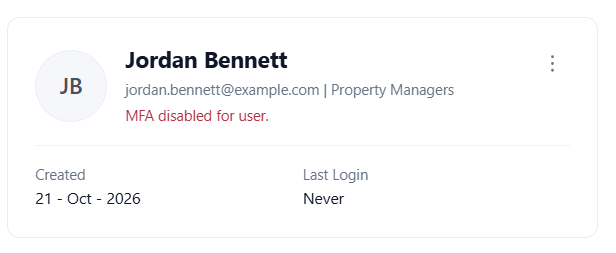
If at any point you wish to edit your user account information, or change user roles, simply click on the user's card as shown above, or use the 3 dots vertical menu and select Edit.
This will open the user details overlay window, where you can perform the following actions:
Set Login permissions
Select Restricted Rentals
Add Custom Attributes
Enable MFA
You can also
Reset Password for the user
Delete the user
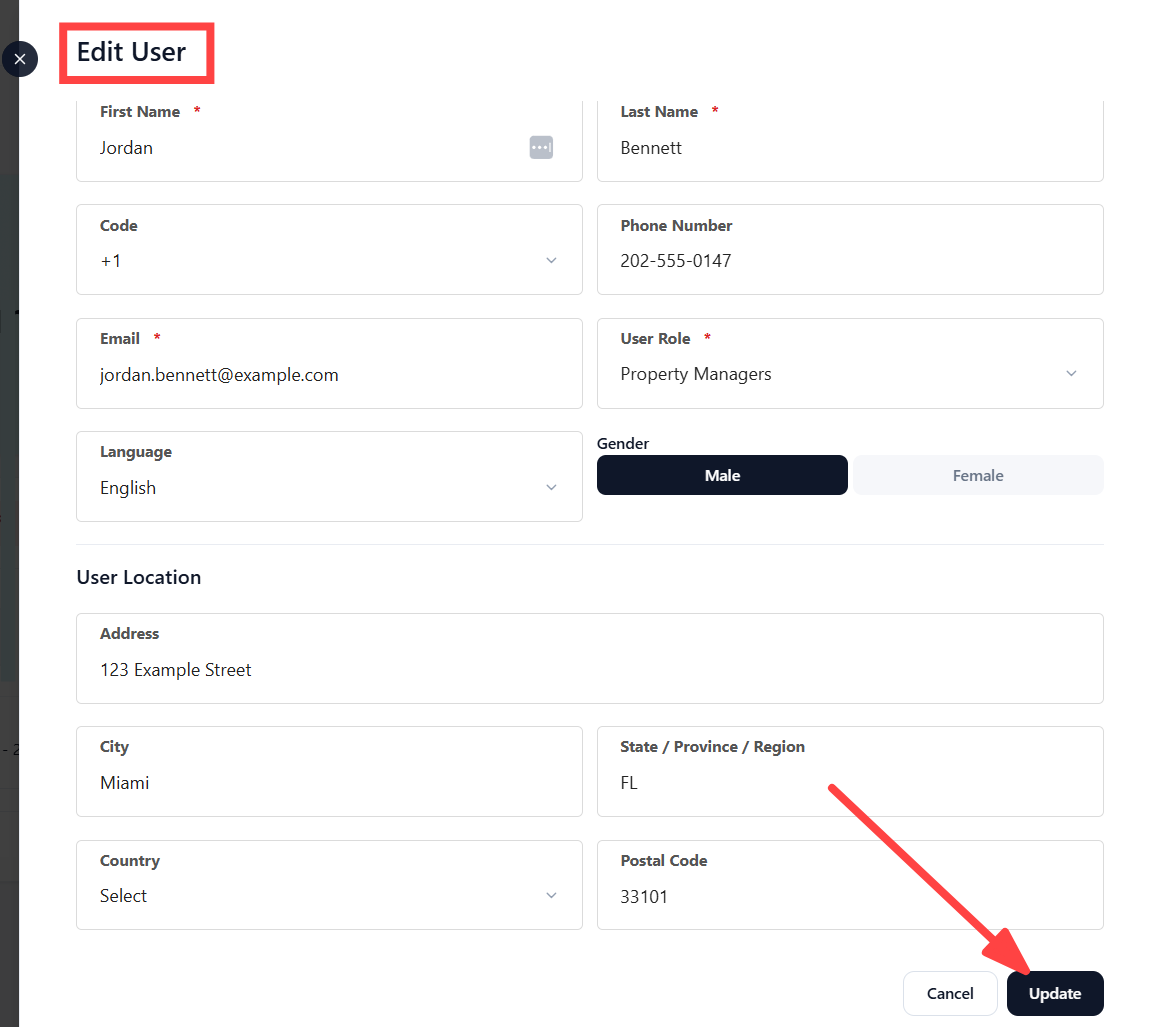
You can view and update the user’s personal information as well. Click on the pencil icon at the top to Edit these details.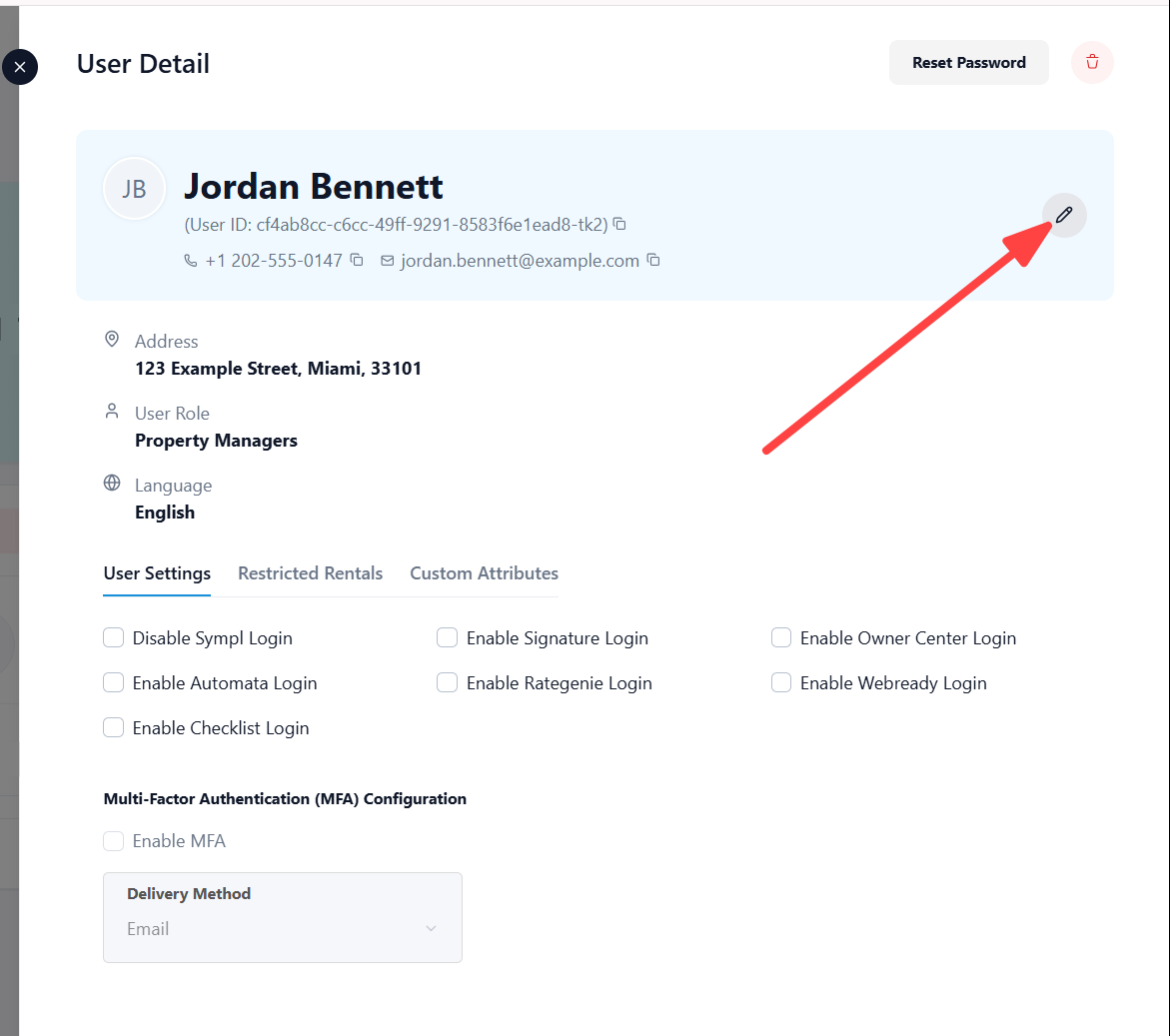
This screen will open. Once you have made your changes, click the Update button to save.