If you’ve already sent a guest a price quote through an invoice but need to update the figures or information, Sympl makes it easy to modify your invoices.
Follow the steps below to update and save changes to any invoice.
Invoice List View:
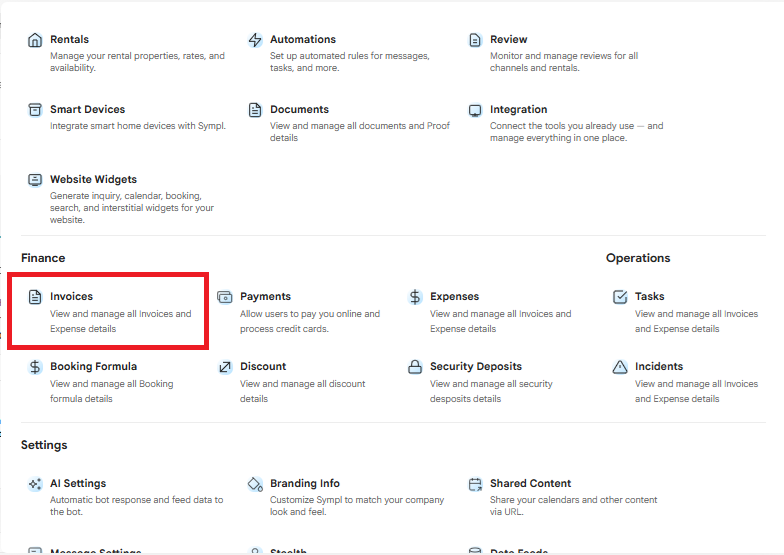
From the top menu, click the More dropdown, then navigate to the Finance section. Click on the Invoices option.
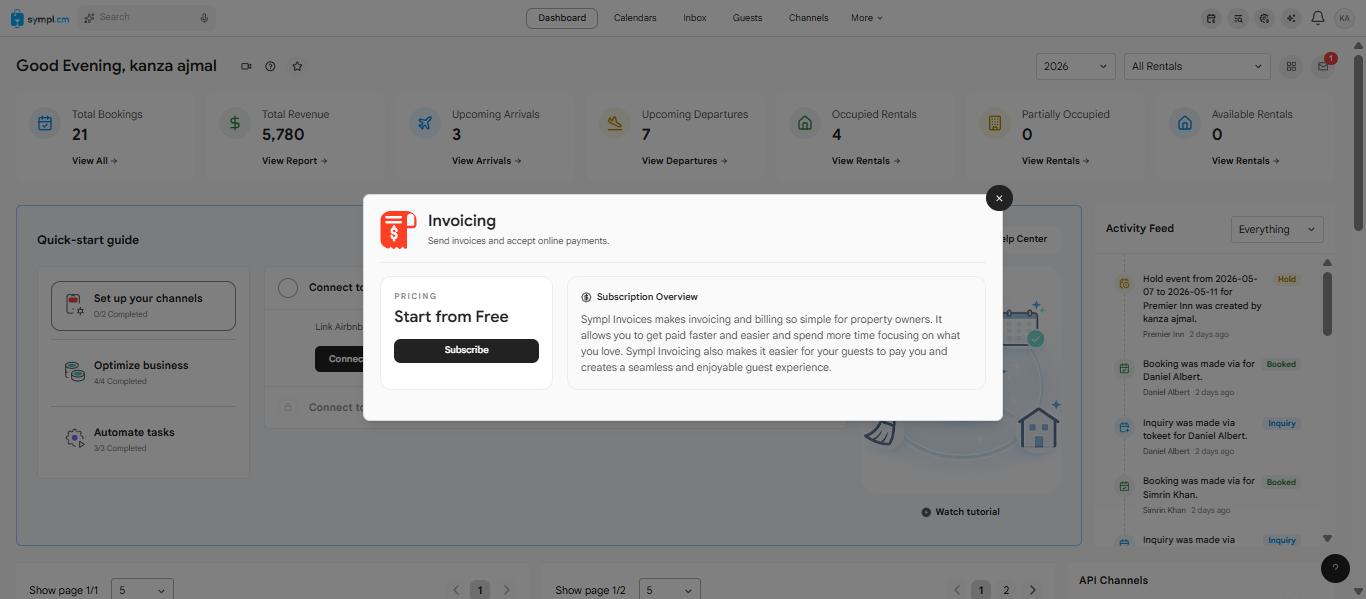
This will open the subscription option for the Invoices module if you have not already subscribed.
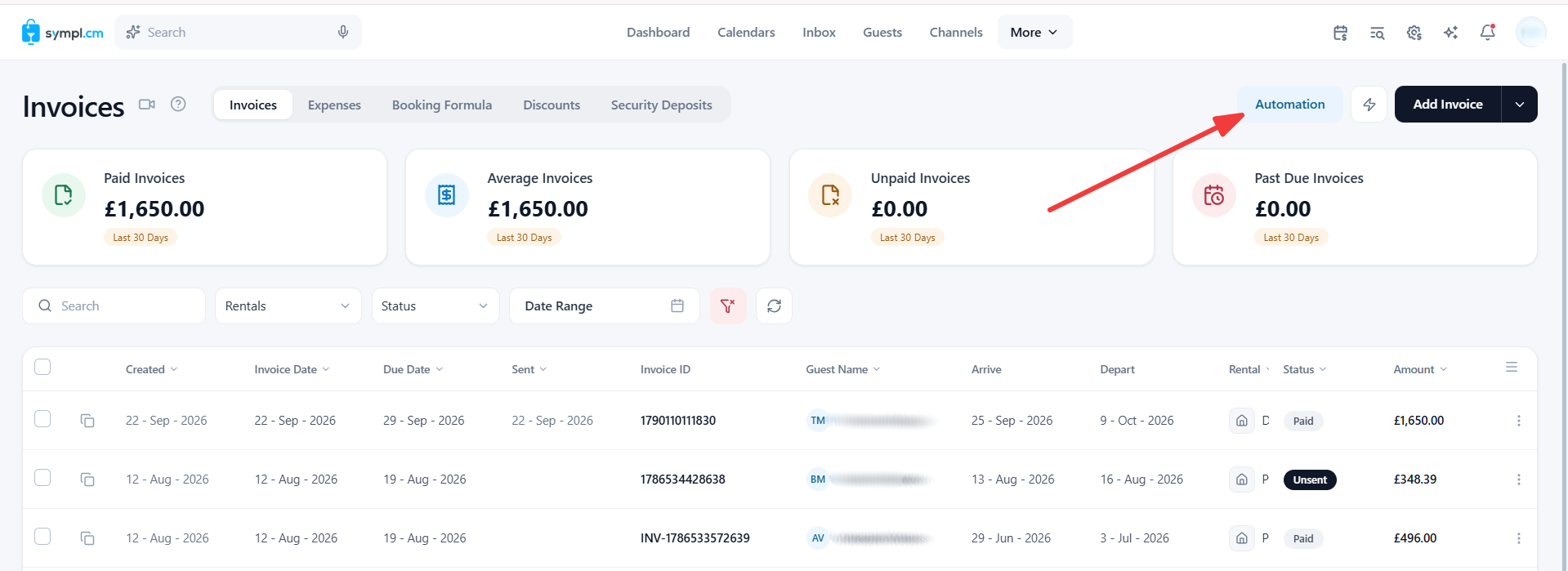
Once subscribed, you will be taken to the Invoices List View
To automate invoices, click the Automation button.
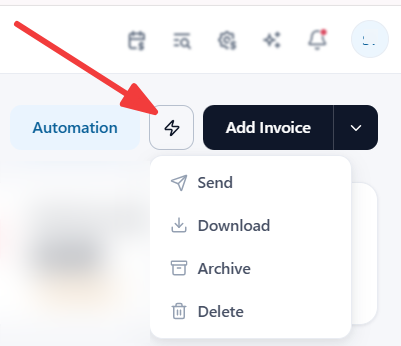
The Actions button gives you options to:
Send selected invoices
Download filtered invoices
Archive and hide invoices from view
Delete selected invoices
Easily create new invoices using the Add Invoice button.

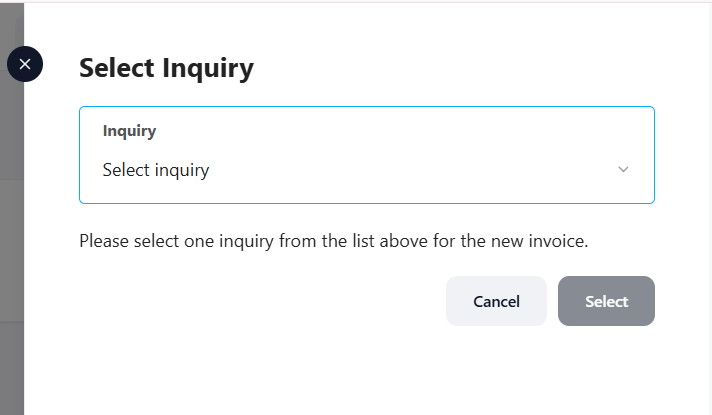
Clicking the button allows you to quickly create an invoice for a booking by selecting the relevant inquiry.
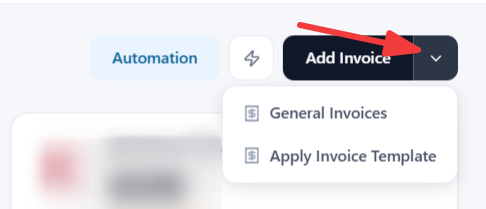
Use the arrow next to the Add Invoice button to:
Create a General Invoice (for additional charges unrelated to the booking total, such as extra fees or items).
Apply an Invoice Template to a particular inquiry.
Summary Cards
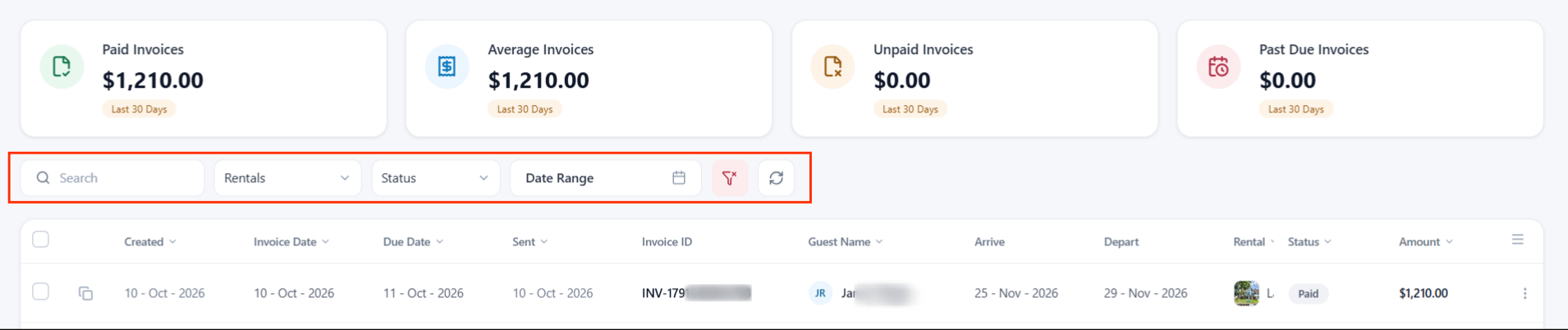
At the top of the page, you’ll find summary cards displaying data from the past 30 days, including:
Paid Invoices
Average Invoice Amount
Unpaid Invoices
Past Due Invoices

Filters & Search
Below the summary cards, you can filter invoices by Rentals, Status, or Date Range.
Use the search bar to find specific invoices quickly.
Click Clear All Filters to reset the view.
Use the Refresh icon to load any newly created invoices.
Customizing the List View
Customize your columns using the Table Settings icon. Deselect any columns you don’t want to display.

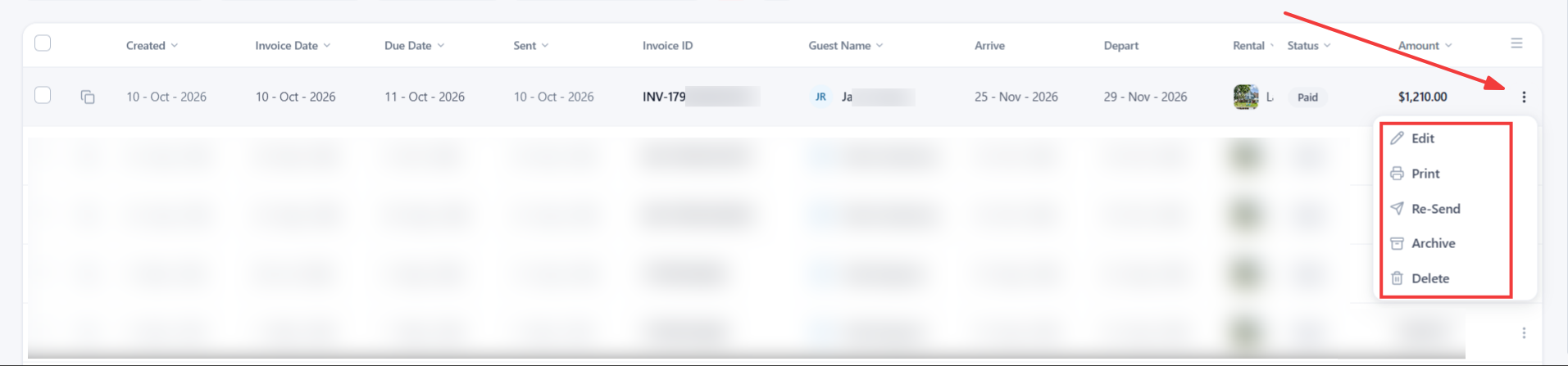
Each invoice record has inline options to:
View
Print
Send or Re-Send to Guest
Archive
Delete
Updating an Invoice
Click on the invoice you want to update.
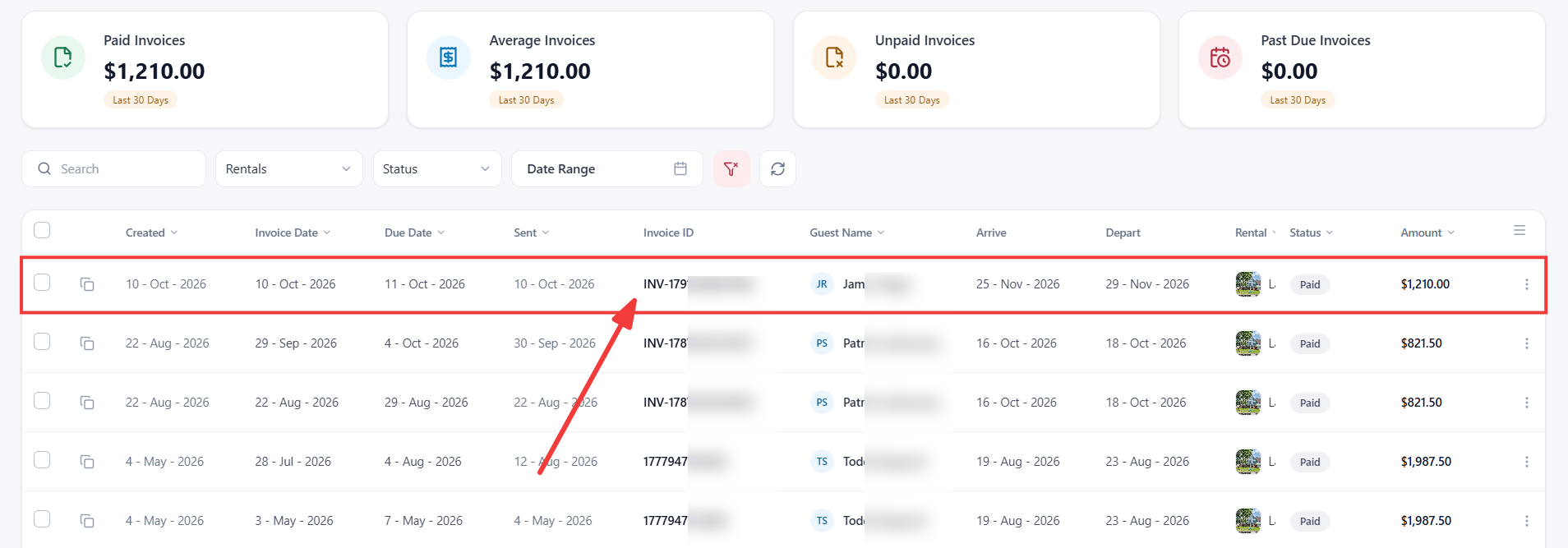
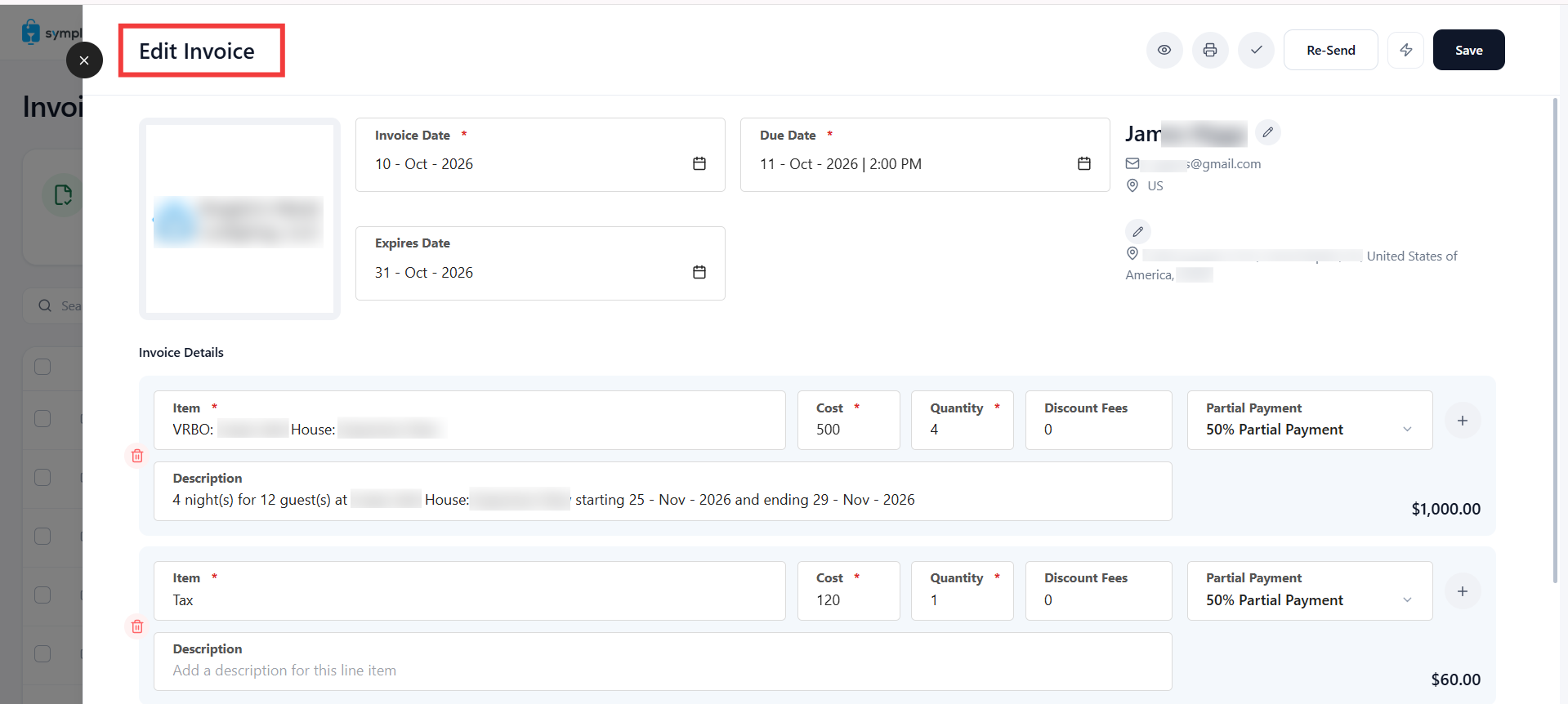
Make your desired changes.
Click Save.
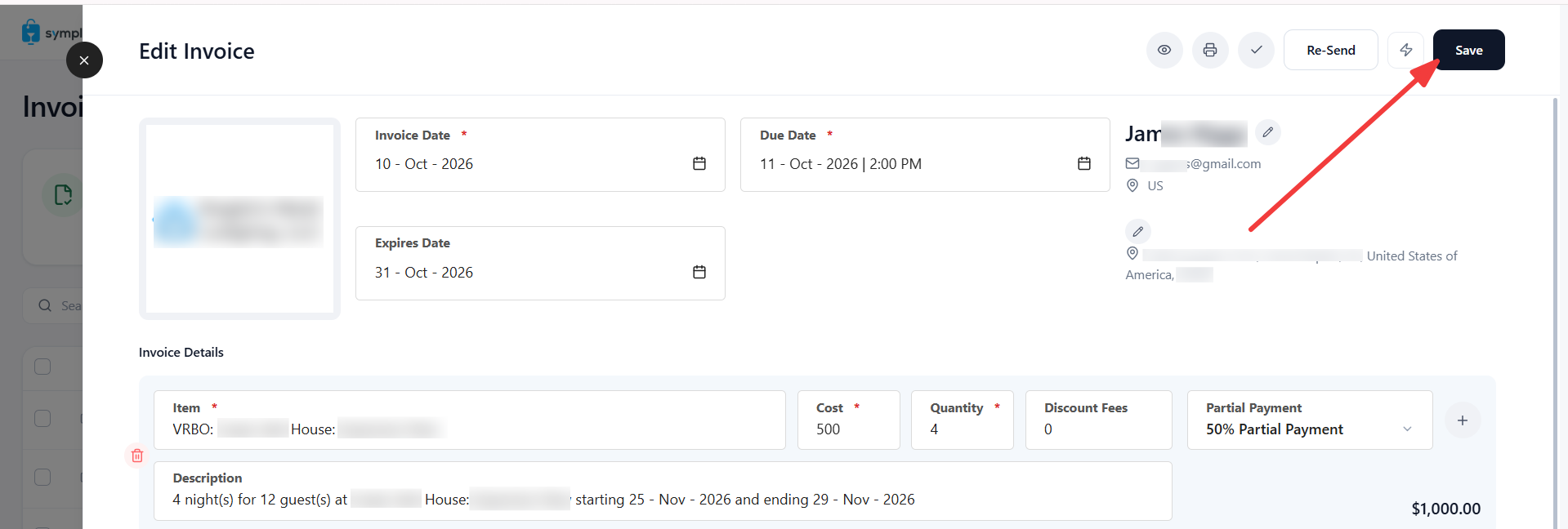
Your changes are now saved!
By keeping your invoices accurate and up-to-date, you’ll ensure your guests receive the correct information and help avoid misunderstandings or confusion around pricing. Double-check invoices before sending them to guests to ensure everything is correct — this saves time and avoids the frustration of correcting pricing after a quote has already been sent.
There are buttons on the top, right of the invoice editor to
Preview the invoice
Print the invoice
Change the Status of the invoice
Re-Send the invoice
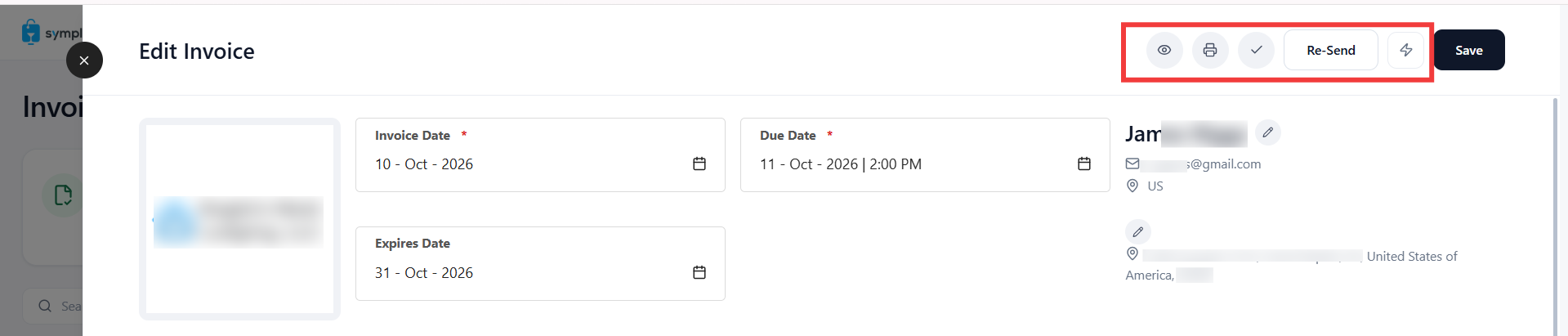
The Actions menu (lightning icon) has options to
Copy (duplicate) the invoice
View the Inquiry details

For more information about invoices, please refer to the help article on Invoicing & Payments