Sympl makes sending invoices easy.
Before creating your first invoice, you may want to connect a Payment Gateway with Sympl. Doing so will allow your guests to pay via a "Pay with Card" button, right in the electronic invoice you send them.
How to Create and Send an Invoice:
First, open the inquiry details overlay for the booking you would like to invoice for. This can be done by navigating to the inquiries module and selecting the inquiry there.
Click on the Created column to open the details.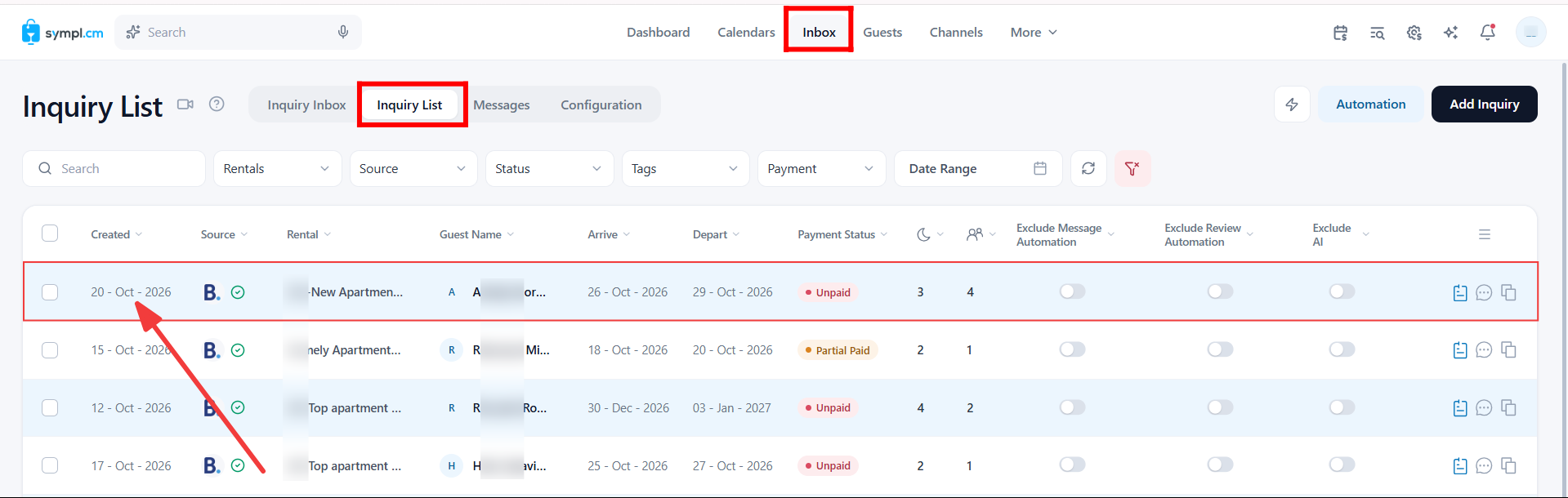
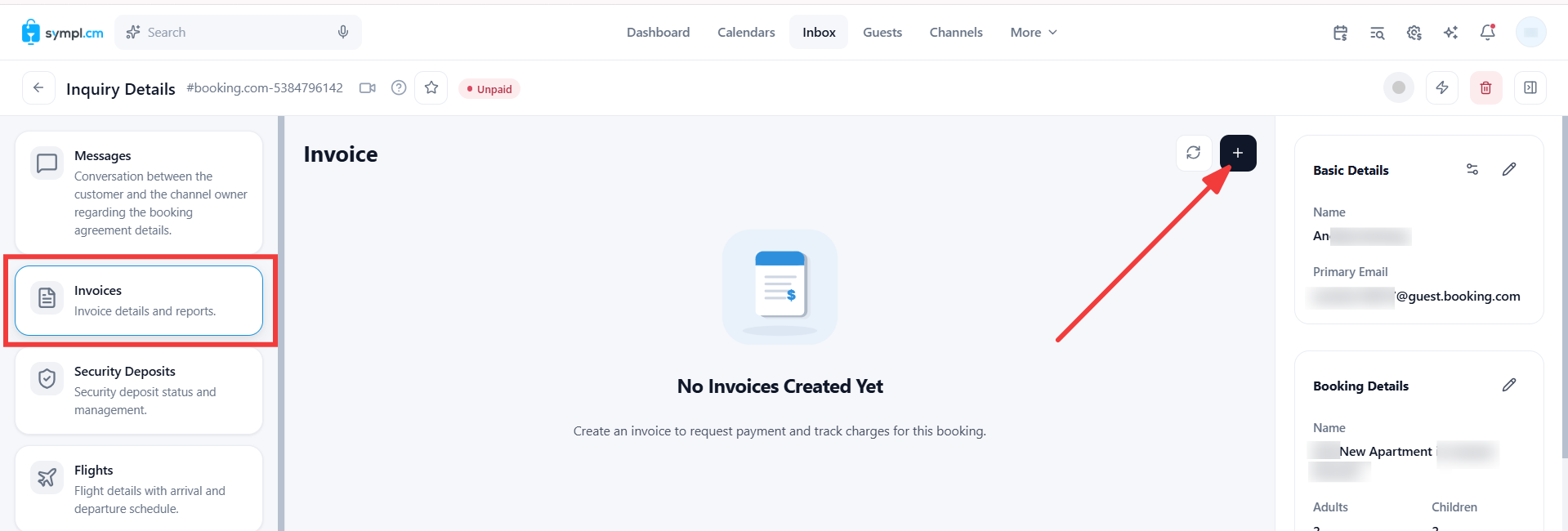
On the inquiry details overlay, navigate to the Invoices tab.
Click the Add Invoice button.
You will see three options.
If you choose Booking Invoice, Sympl will auto-generate an invoice based on the billing information in the inquiry. If you wish to create a blank invoice, select General Invoice. If you have an existing Invoice Template that you wish to use, then choose Apply Invoice Template.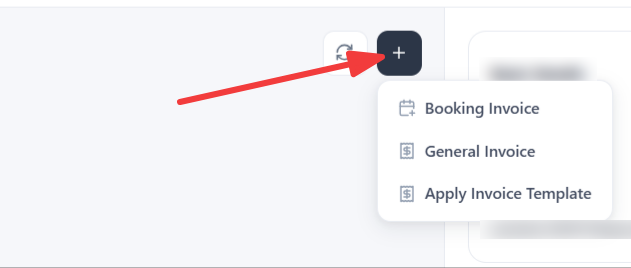
You may make changes, or add line items to the invoice by clicking "+ Add Line Item". For example, you may want to include your cleaning fees as an extra line item.
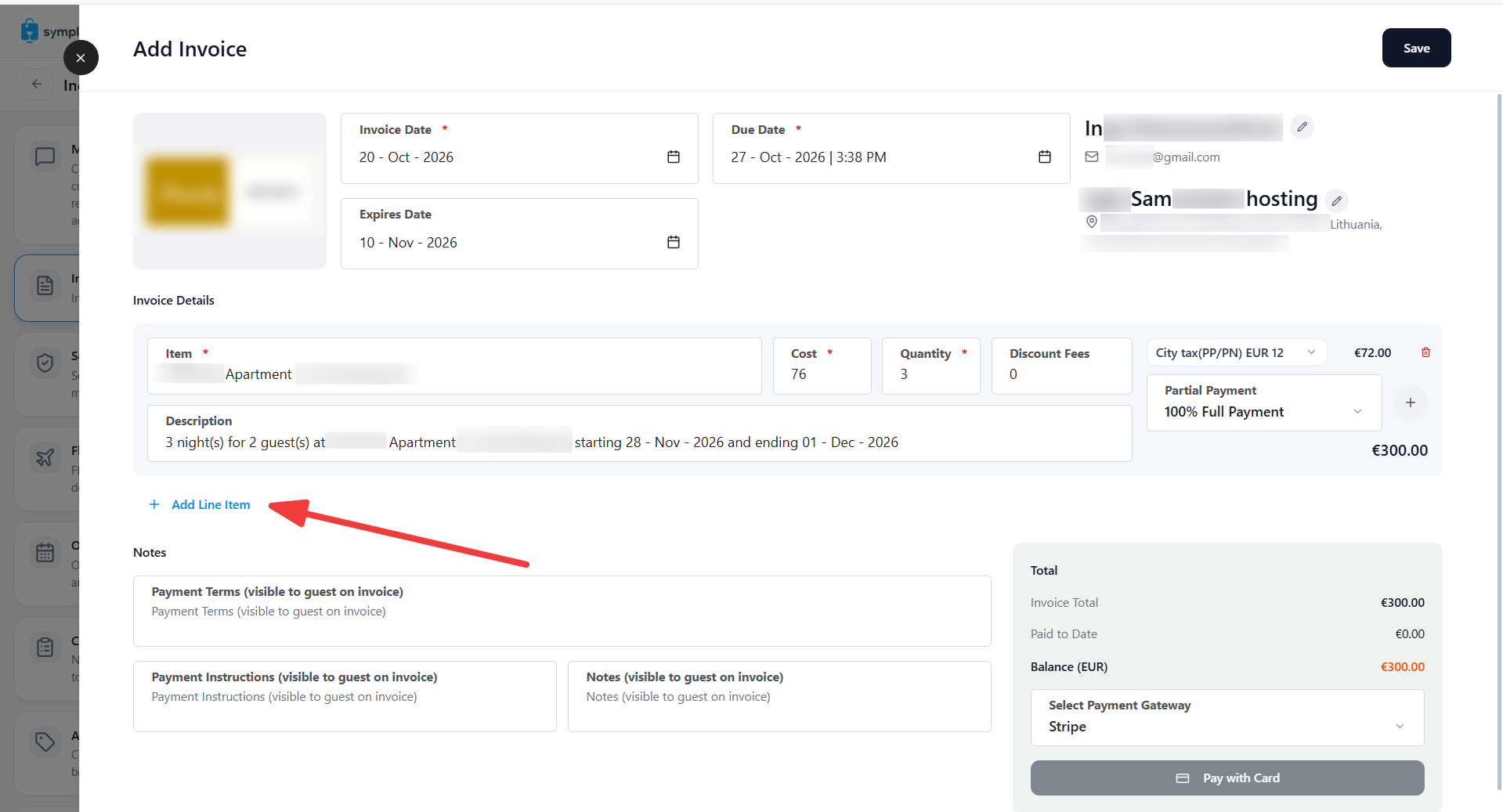
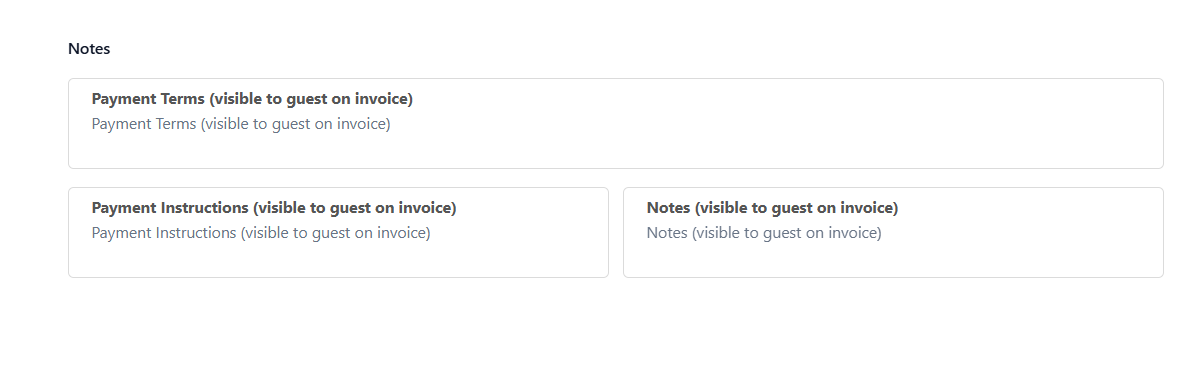
Towards the bottom of the invoice, you may enter in your Payment Terms, Payment Instructions, and Notes. All of these will be visible to your guest.
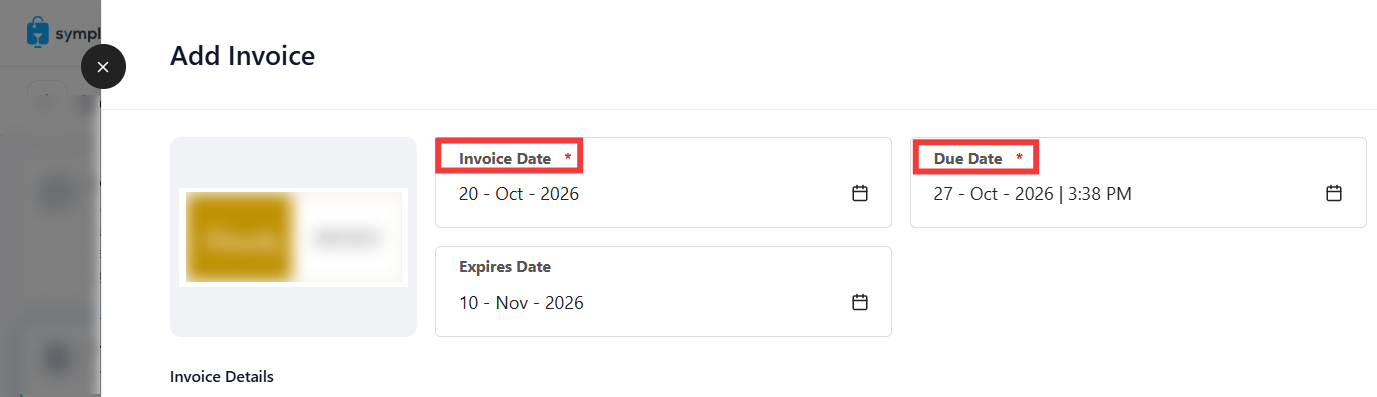
Set an Invoice Date and invoice Due Date. You may also set an Expiration date.
Once you are satisfied with the invoice, click "Save".
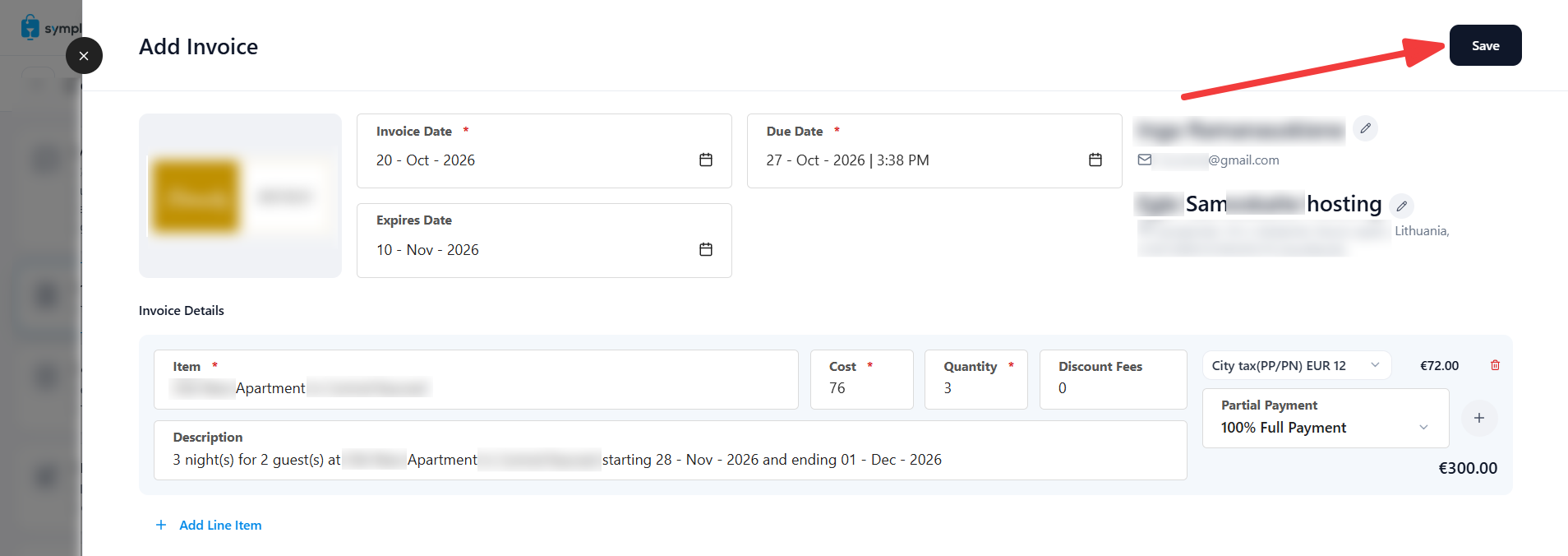
That’s it! Your invoice has been created.
After Saving your invoice, you will remain on the invoice with the option to perform any of the following actions.
• Preview the invoice. See exactly what the guest will see when they click on the link to your invoice.

• Print your invoice. Retain a hard copy of the invoice for your records or to present to the guest should they ask for a paper receipt.

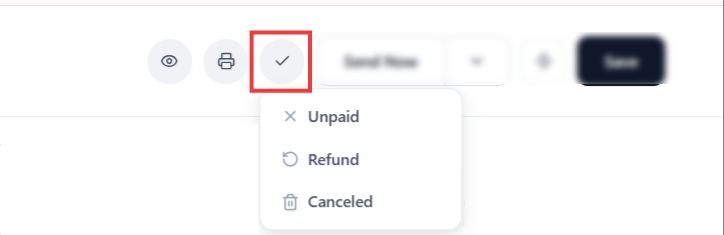
• Change the status of your invoice.
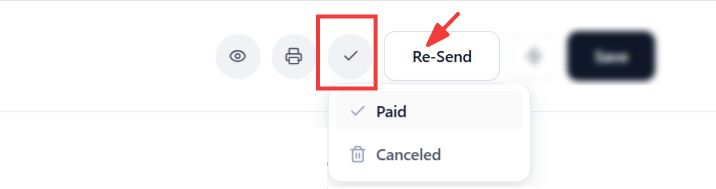
If you have charged a user via another method or taken a cash payment it will sometimes result in you needing to manually mark the invoice status as Paid. If a payment to you has failed, you may need to change the invoice status to unpaid.Mark as Unpaid
Mark as Refunded
Mark as Canceled

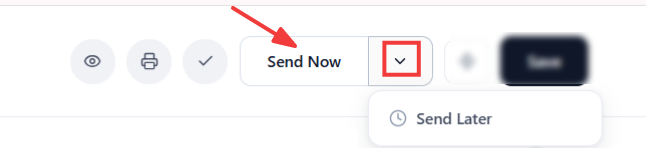
• Send the invoice now or Schedule the invoice to be sent out.
The Mark as Paid option will be visible for unpaid invoices.
If an invoice was previously sent, you will have the choice to Re-Send it to the guest.
 When you send an invoice to a guest they will receive a link to the invoice. If you need to make future updates to your invoice, you may do so--and your updates will be immediately visible to the guest at the same link.
There’s no need to create a new invoice.