Sympl Help Center Sympl Help Center
  • Smart Devices
    • Smart Devices General Settings
    • Smart Devices Setup
    • Smart Devices Overview
  • Sympl FAQs
    • Multi-Factor Authentication (MFA) FAQs
    • Advance Intelligence FAQs
    • General FAQs
    • Automations/Autopilot FAQs
    • VRBO FAQs
    • Reviews FAQs
    • Messaging Apps FAQs
    • Smart Devices FAQs
    • Channels FAQs
    • Airbnb API FAQs
    • Difference between Sympl V1 and Sympl V2
  • Autopilots
    • Tasks Autopilot Wizard Overview
    • Guest Autopilot Wizard Overview
    • Reviews Autopilot Wizard Overview
    • Messages Autopilot Wizard Overview
    • Expenses Autopilot Wizard Overview
    • Locks Autopilot Wizard Overview
    • Invoices Autopilot Wizard Overview
    • Autopilot Wizard Overview
    • Bookings Autopilot Wizard Overview
    • Documents Autopilot Wizard Overview
    • Credit Card Autopilot Wizard Overview
    • Incidents Autopilot Wizard Overview
  • Messaging Apps
    • Messaging Configurations
    • Messaging App - WhatsApp
    • Messaging App- SMS
    • Messaging App - Facebook
  • Operations
    • Tasks
      • My Tasks Overview
      • Tasks List View Overview
      • Tasks Calendar
    • Incidents Overview
  • Advance Intelligence
    • AI Scheduling Feature
    • AI generated Incidents & Task Approval Workflow
    • AI based Search
    • AI driven Actions
    • Activating Advance Intelligence
    • Advance Intelligence Rental Information
    • Advance Intelligence Credit Recharge
    • Advance Intelligence Ignore List
    • Advance Intelligence Settings
    • Advance Intelligence Introduction & Benefits
    • Advance Intelligence Knowledgebase
  • Finances
    • How to setup Security Deposits?
    • Expenses Overview
    • Expense Settings
    • Invoice Overview
    • Invoice Templates
    • Booking Formula Overview
    • Discounts Overview
  • Automations
    • Rates Automations
      • What is a Dynamic Rate?
      • LOS Discount Automation
      • Group Rates
      • Gap Night Automation
      • Last Minute Automations
      • Channel Adjustments
      • Rates Automation Overview
      • Min Night Stay Automation
      • Discount Codes Automation
    • Automations Overview
    • Expense Automation
    • Documents Automation
    • Task Automation
    • Invoice Automations
    • Booking Automation Overview
    • Automations Overview
    • Message Automation Overview
  • Documents
    • Documents Templates
    • How to create Documents?
    • Documents Preferences
  • Overview
    • Inventory Search Overview
    • Push Rates & Availability
    • Cost Estimator Overview
    • Dashboard Overview
  • Reviews
    • AI Review Insights Overview
    • Reviews Overview
    • Reviews List View
    • Reviews Automation
    • Reviews to Write- Bookings List View
    • Reviews Dashboard
  • Sympl Mobile App
    • Sympl Mobile App: Expenses Module
    • Sympl Mobile App: Discounts Module
    • Sympl Mobile App: Tasks Module
    • Sympl Mobile App: Dashboard
    • Sympl Mobile App: Rentals Module
    • Sympl Mobile App: Calendars Module
    • Sympl Mobile App: Guests Module
    • Sympl Mobile App: Inquiries Module
    • Sympl Mobile App: Incidents Module
    • Sympl Mobile App: Messages Module
    • Sympl Mobile App: Invoices Module
  • Invoices & Billing
    • Invoice Management
      • How to draft Invoice templates?
      • How to setup Invoice Rules?
      • How Do I Make Changes to an Invoice?
      • Invoicing & Payments
      • How Do I Charge a Guest for Multiple Items on an Invoice?
      • Scheduling Invoices
      • How Do I Request a Partial Payment or Deposit Payment?
    • Payment Gateways
      • PayPal
      • Booking.com Card Details Requirement
      • Booking.com and Expedia payment details
      • Payment Rules
      • How Do I Accept Payments Online and Via Credit Card?
      • Stripe
  • Calendars
    • Standard Calendar
    • Bookings Calendar
    • Yearly Calendar
    • Hold Events Overview
    • How to Import a Calendar
  • Rental Settings
    • How Do I Add Fees to my Rental?
    • How Do I Create a Custom Sympl Email Address?
    • How Do I Change My Rental Currency?
    • How Do I Add and Update Rentals?
    • Linking Rentals Together
    • Rentals Details Overlay
    • How do I delete rentals?
    • Currencies Supported by Sympl
  • Inquiries & Bookings
    • Guests Information
      • How can I import guests via CSV files?
      • Guests Overview
      • How Do I Make Notes of Guest Interactions?
      • Guest List Overview
    • Inquiries Information
      • Messages Feed
      • How Do I Delete an Inquiry?
      • How Do I Create an Inquiry?
      • Inquiry Inbox Overview
      • Inquiry Overview
    • How to Send Quotes
    • How Do I Confirm a Booking?
    • How do I attach a file to a message?
  • Settings
    • Widgets
      • Add the Inquiry Widget to a Site
      • Add the Calendar Widget to a Site
      • Inquiry Widget Advanced Configuration
    • Multi-Factor Authentication
      • Multi-Factor Authentication (MFA) Overview
    • Sympl Subscription & Billing
      • How Do I Cancel My Subscription?
      • How Do I Change My Subscription?
      • How Do I Update My Credit Card Information?
      • Billing Info Overview
    • Templates
      • Templates for Automations
      • Sympl Data Dictionary
    • Integrations
      • Quickbooks integration with Sympl
      • Connecting Chekin to Sympl
      • How to create Zap using Sympl Autopilot feature?
      • Connecting Operto to Sympl
      • Integrations Overview
      • Connecting PriceLabs to Sympl
      • How do I connect to MailChimp?
      • Sympl integration with Dropbox
      • Sympl integration with Slack
    • Web onboarding Flow for Sympl users
    • Sympl Setup Checklist
    • File Cabinet Overview
    • Inbox Conversations Overview
    • Shared Content Overview
    • Using Google Translate with Sympl
    • Account Info Overview
    • Migrating from AdvanceCM to Sympl
    • What are the major differences between AdvanceCM and Sympl?
    • Custom Branding Overview
    • Data Feeds Overview
    • Email Options
    • Stealth Overview
    • Custom Codes Overview
  • User Settings & Logins
    • Custom Attributes
    • User Type and Permissions Overview
    • I forgot my password, what to do now?
    • Change Password
    • Where Can I Find My Sympl Account ID?
    • How Do I Change My Password?
    • Users Accounts Overview
    • Troubleshooting IP Blocked and Account Locked
    • Restricting User Access
  • Rates Management
    • How to Set Up Distinct Rates for Channels
    • Troubleshooting Rates
    • Rate Determination Algorithm
    • Pushing rates to Booking.com
    • What is a Base Rate?
    • Changing the Max Guests value on Booking.com
    • Checking Rates for Accuracy
    • Changing the additional guest fee on Booking.com
    • Pushing Rates to API Channels
    • What is a Standard Rate?
    • Rate Types in Sympl
    • My Rates are Too Low on Booking.com
    • My Rates are Too High on Booking.com
    • How to Set Day-Specific Pricing
    • What is a Rate Category?
  • Channel Manager
    • iCal Connections
      • What if my channel is not listed in Sympl?
      • Connecting iCal Channels with Sympl
      • Export your Sympl calendar to Holiday Lettings
      • Connecting to FlipKey/TripAdvisor with Sympl
      • Connecting to Homeaway/VRBO with Sympl
    • API Connections
      • Trip.com
        • Connecting Trip.com to Sympl
      • Tiket
        • Connecting Tiket to Sympl
      • Hopper
        • Connecting Hopper to Sympl
      • Rentals United
        • Connecting Rentals United to Sympl
      • HVMI
        • HVMI Requirements and FAQ
        • Connecting HVMI to Sympl
        • How Marriott handles Booking Fees
        • Marriot Discounts
      • Google Vacation Rentals
        • Connecting to Google's Vacation Rental platform
        • Google Vacation Rentals FAQs
        • Google Vacation Homes - Fixing Rental Errors
      • Booking.com
        • Sympl and Booking.com Best Practices
        • Booking.com Rates & Additional Guest Pricing
        • How to Push Rates to Booking.com
        • Connect to Sympl via the Booking.com Extranet
        • Sending Booking.com messages with Sympl
      • Agoda
        • Connecting Agoda with Sympl
      • Vrbo
        • VRBO FAQs
        • VRBO Bed Syncing
        • Connecting the VRBO API to Sympl
        • Activating Sympl Rentals on VRBO
        • Setting Rates and Fees in Sympl for Vrbo
      • Airbnb
        • Airbnb Quality Dashboard
        • Airbnb API FAQ
        • Connecting to Airbnb API
        • Create an Airbnb Password (Connection Resolution)
        • Connecting to Airbnb via iCal
        • Airbnb Rental Listing Requirements
        • How to Refresh Your Airbnb Property List
        • Creating Listings in Airbnb
        • Co-hosting with Airbnb API
        • Airbnb Host Alteration
        • How to Rank Higher on AirBnB
        • Airbnb Guest Alteration
        • How Do I Disconnect my Airbnb Listing or Account from AdvanceCM?
        • Airbnb 2-Way API Sync
      • Expedia
        • How to connect Expedia Messaging with Sympl
        • Connecting Expedia with Sympl
    • Sympl Channel Manager Overview
    • Disconnect a Channel Account
    • Adding Custom Channels
    • Channels Overview
    • Adding Commissions for Channels
Rates Management / What is a Standard Rate? /
Website Community Login

What is a Standard Rate?

To help in simplifying your rate structure, Sympl offers two types of rates you may use to manage your rental pricing.

Standard Rates

The first, and most common type, is the Standard Rate. A standard rate is an ongoing rate that describes the price of your rental over a specific date range. It's essentially like the rates you use now on FlipKey and HomeAway. The purpose of the standard rate is to allow you to specify your rates into the future and not have to change them.

Dynamic Rates can be used in place of Standard Rates and are useful for automatic changes that occur based on the occupancy for your rentals. For more information on Dynamic Rates please see the following article: What is a Dynamic Rate?

The process for creating Standard Rates is easy with Sympl.

You can create rates directly from the Bookings calendar or from within the Rental. See steps below on how to do both.

From the Bookings calendar:

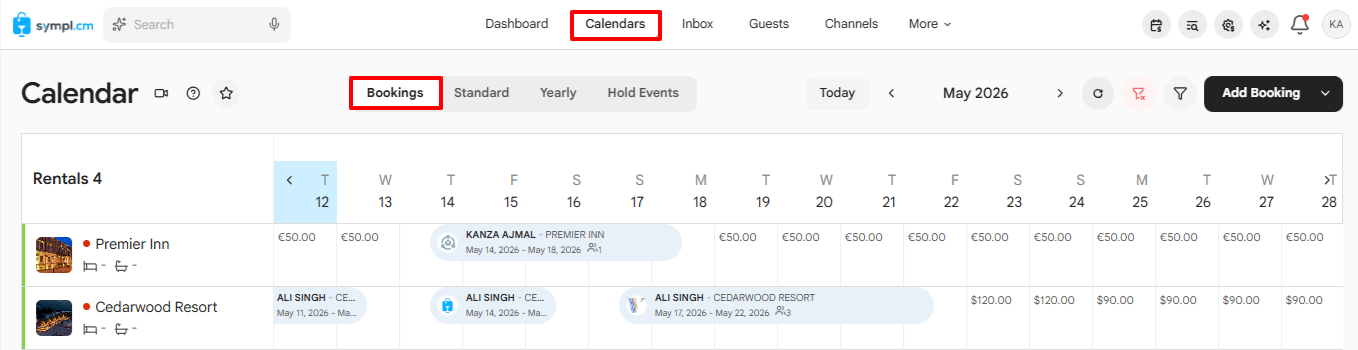
  1. Click on Calendars in the top navigation menu and on the bookings calendar option if this isn't your default calendar.
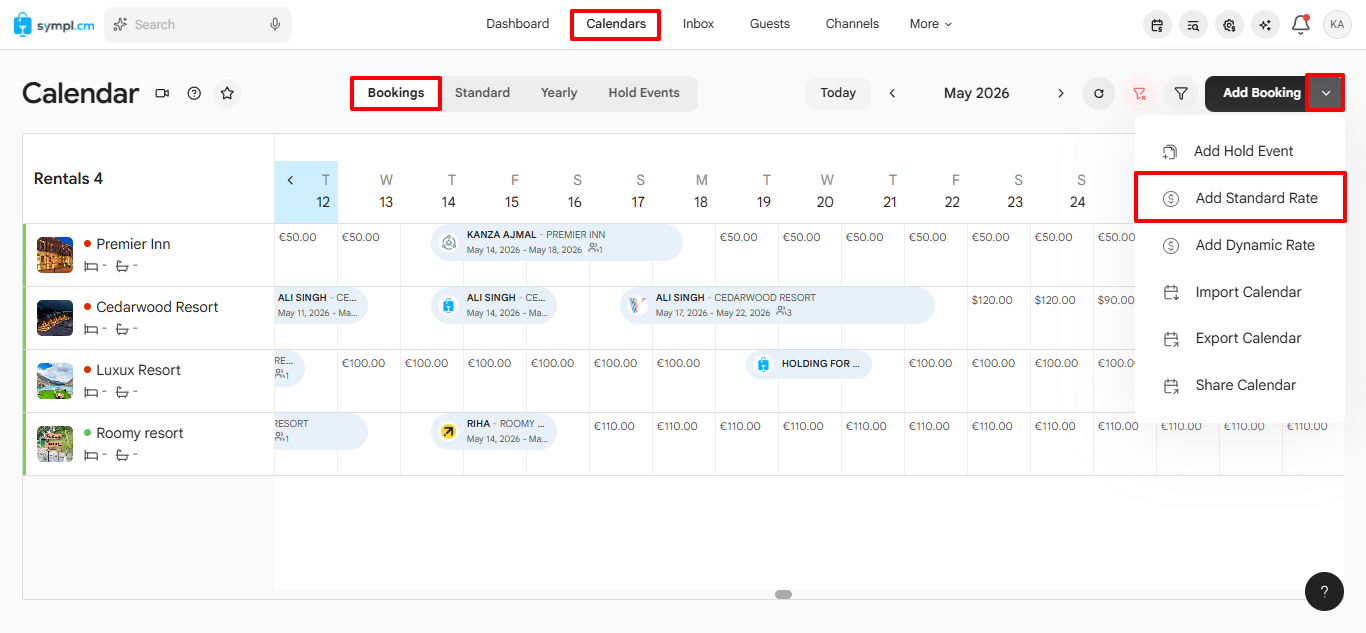
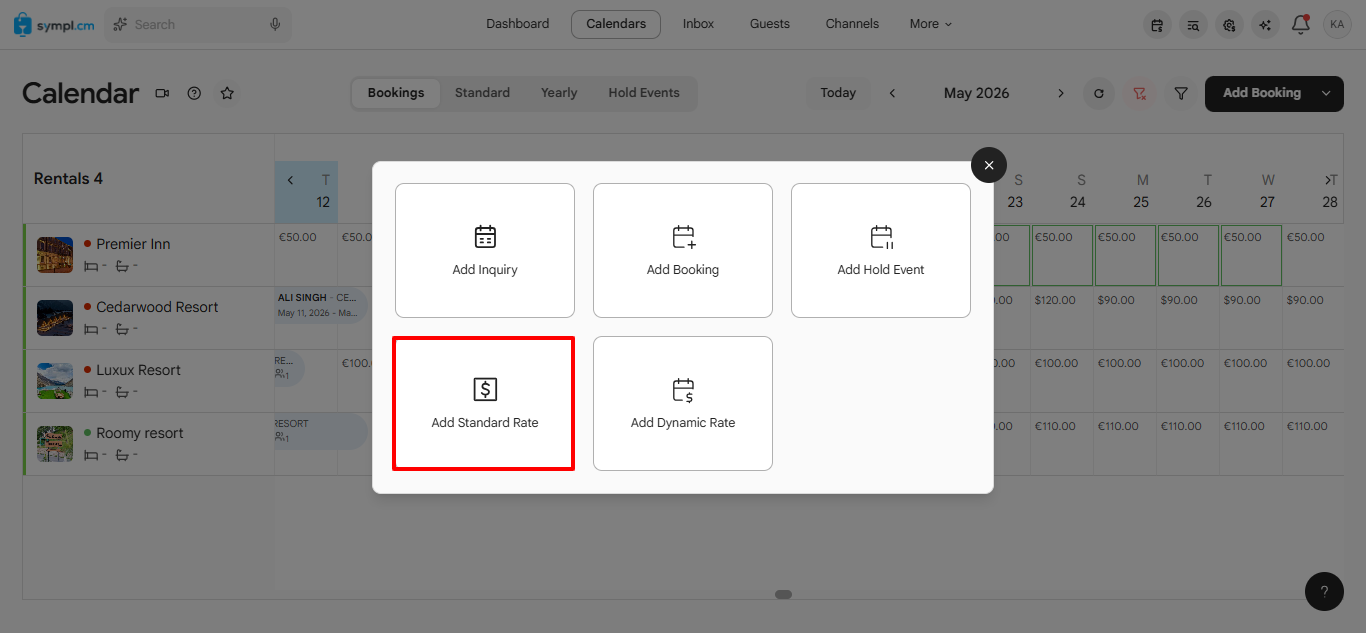
  2. Create a new standard rate by clicking on the dropdown arrow next to the Add Booking button then Add Standard Rate or by dragging over the dates for the rental and then choosing the Add Standard Rate option.
From the Rental:

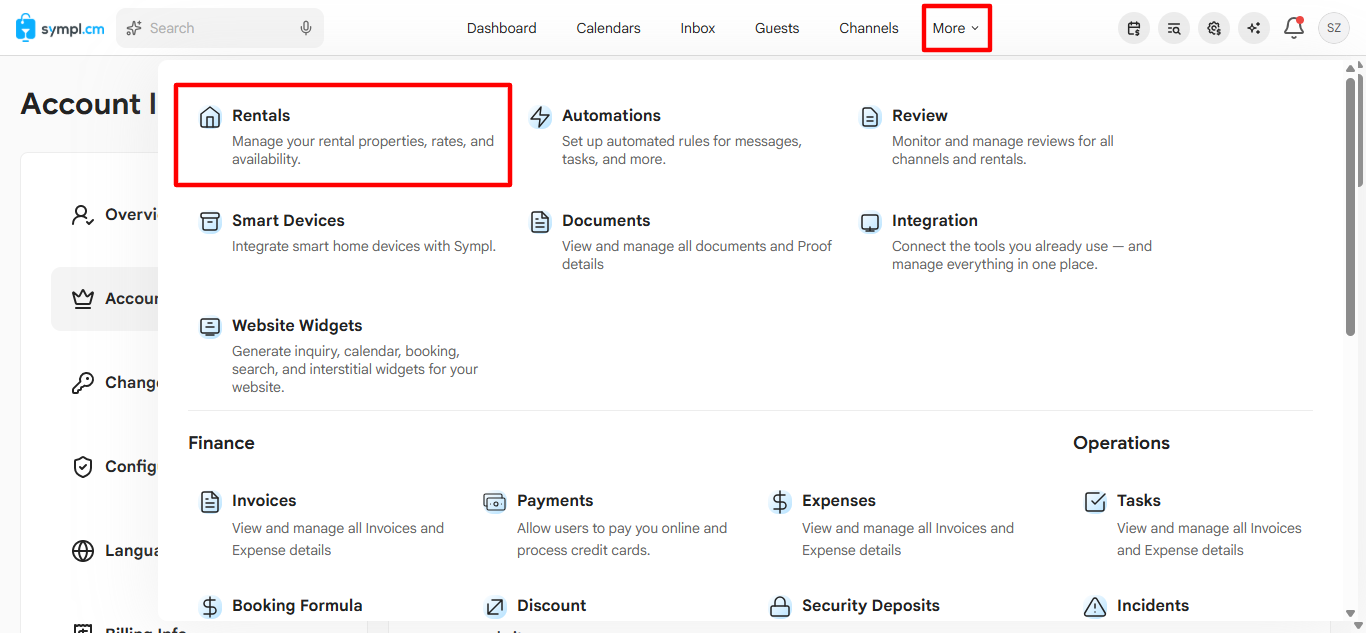
  1. Navigate to the rental you want to add rates to by clicking on it in the calendar, or from More > Rentals in the top navigation bar.
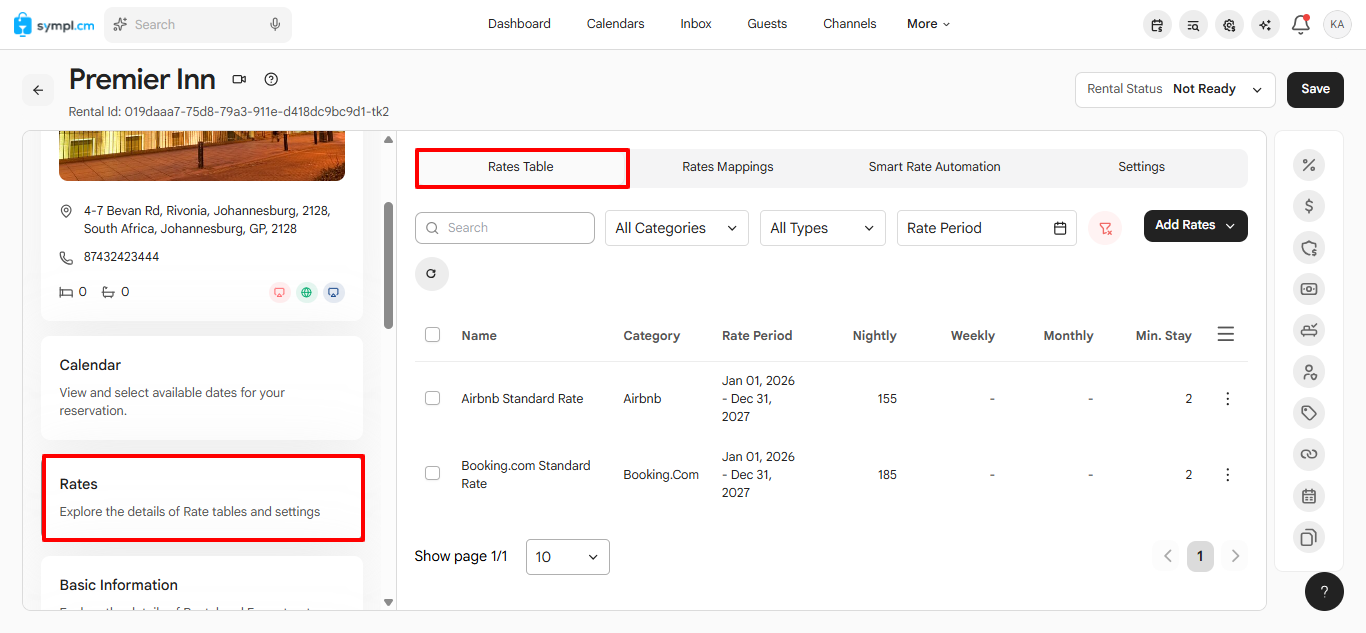
  2. Navigate to the "Rates" tab of the rental, select the Rates Table tab
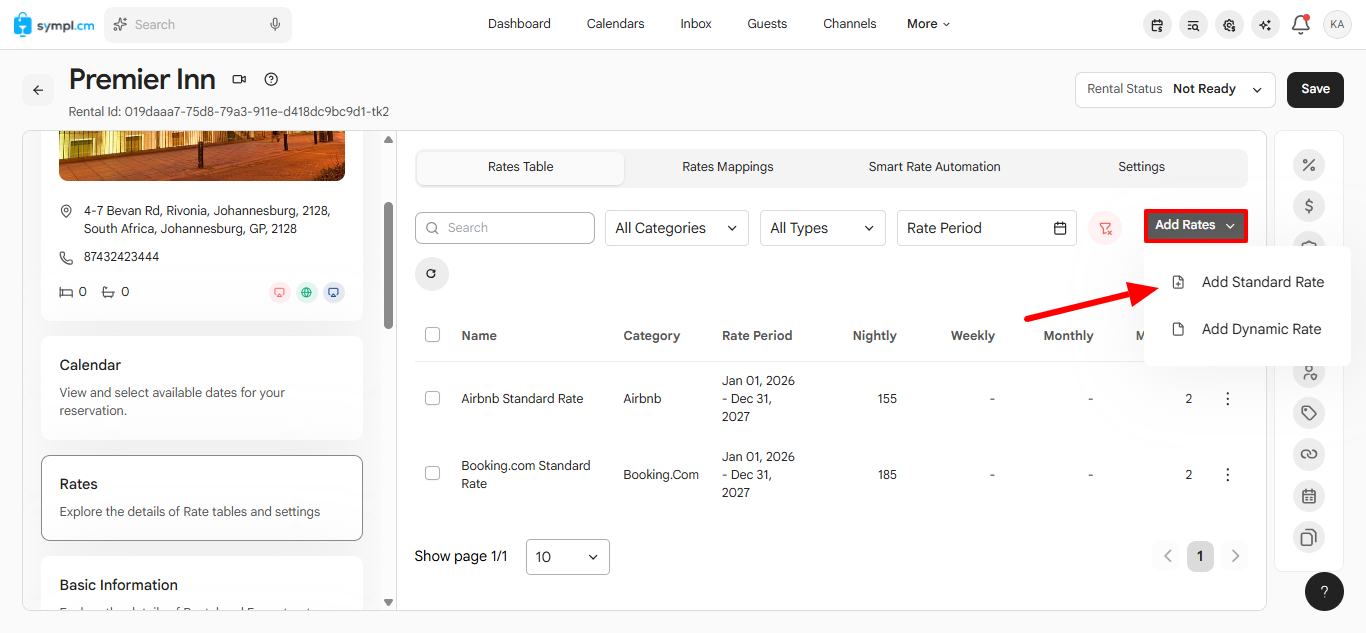
  3. Click on the Add Rates button.

  4. Choose the "Add Standard Rate" option.
  5. Fill out the fields for your standard rate then click Create.
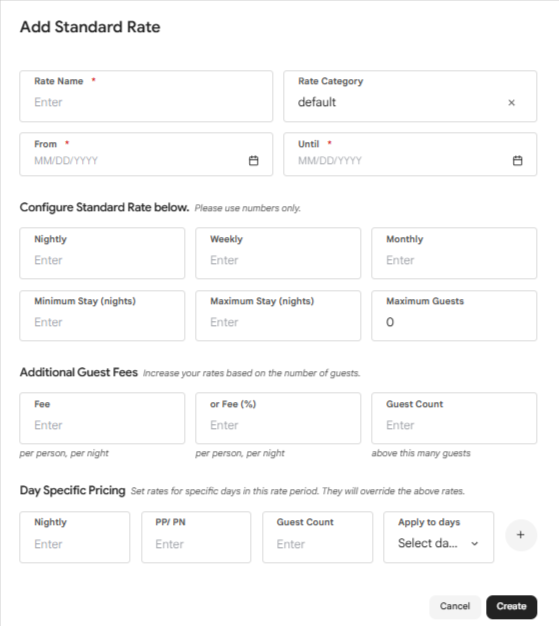
Rate Fields:

  • Rate Name

  • Select or create Rate Categories.

To create a new rate category, simply type in the category field.
  • From Date: select date from which the Rate is applicable

  • Until Date: select date until which the Rate is applicable

  • Nightly: nightly rate.

  • Weekly: rate that is applied if a guest stays Monday through Sunday (optional).

  • Monthly: rate that is applied when a guest stays for an entire month (optional).

  • Minimum Stay:  minimum amount of days guests are allowed to book.

    Note: If you are using a minimum night stay automation, then the values saved there will overwrite these min stay values in the standard rate.

  • Maximum Stay: maximum amount of days that this rental can be booked.

  • Maximum Guests.

  • Additional Guest Fee: charge x amount for per person per night, above y guests.

  • Day-Specific Pricing: charge a different rate for certain days of the week.  Please see this Help Center article for more info. 

You can create overlapping Standard rates on the Sympl calendar. Sympl will automatically detect the overlaps and split the existing rates appropriately to accommodate the changes.

Note: Channel adjustments are only applied to the "default" rate category. Once channel adjustments are added to a rental, "default" rates take priority and will be sent to the channels during the rate push.

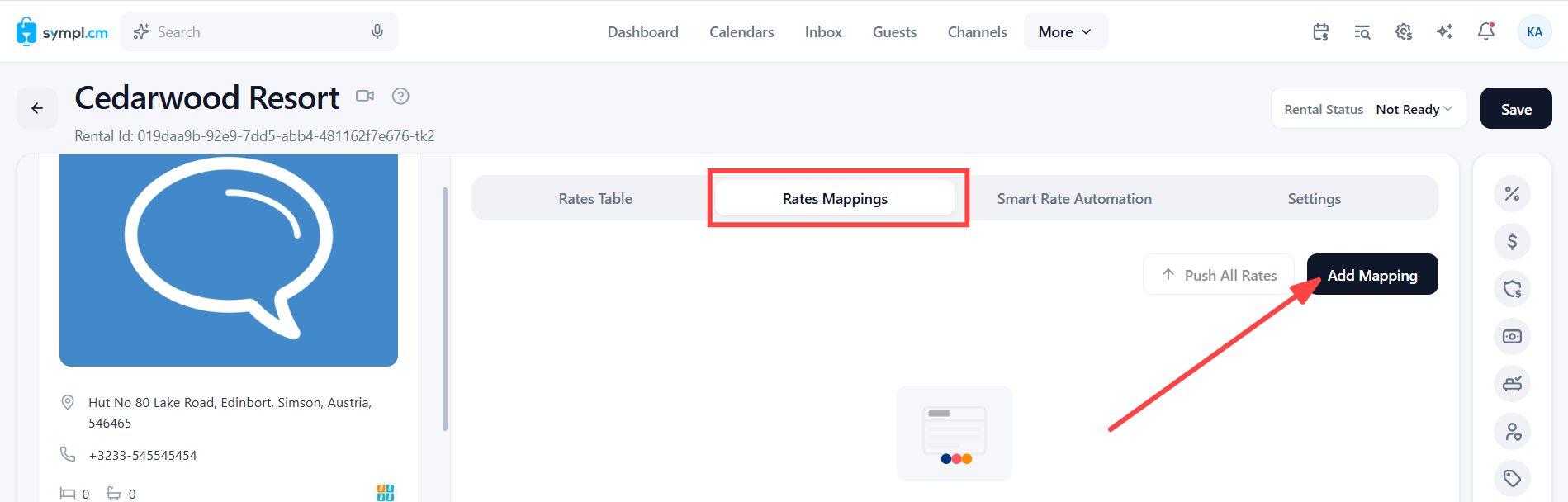
Rate Mappings

To automatically push your rates to your connected API channels, you can add Rate Mappings and enable the Auto Sync.

To add Rate Mappings for a rental,

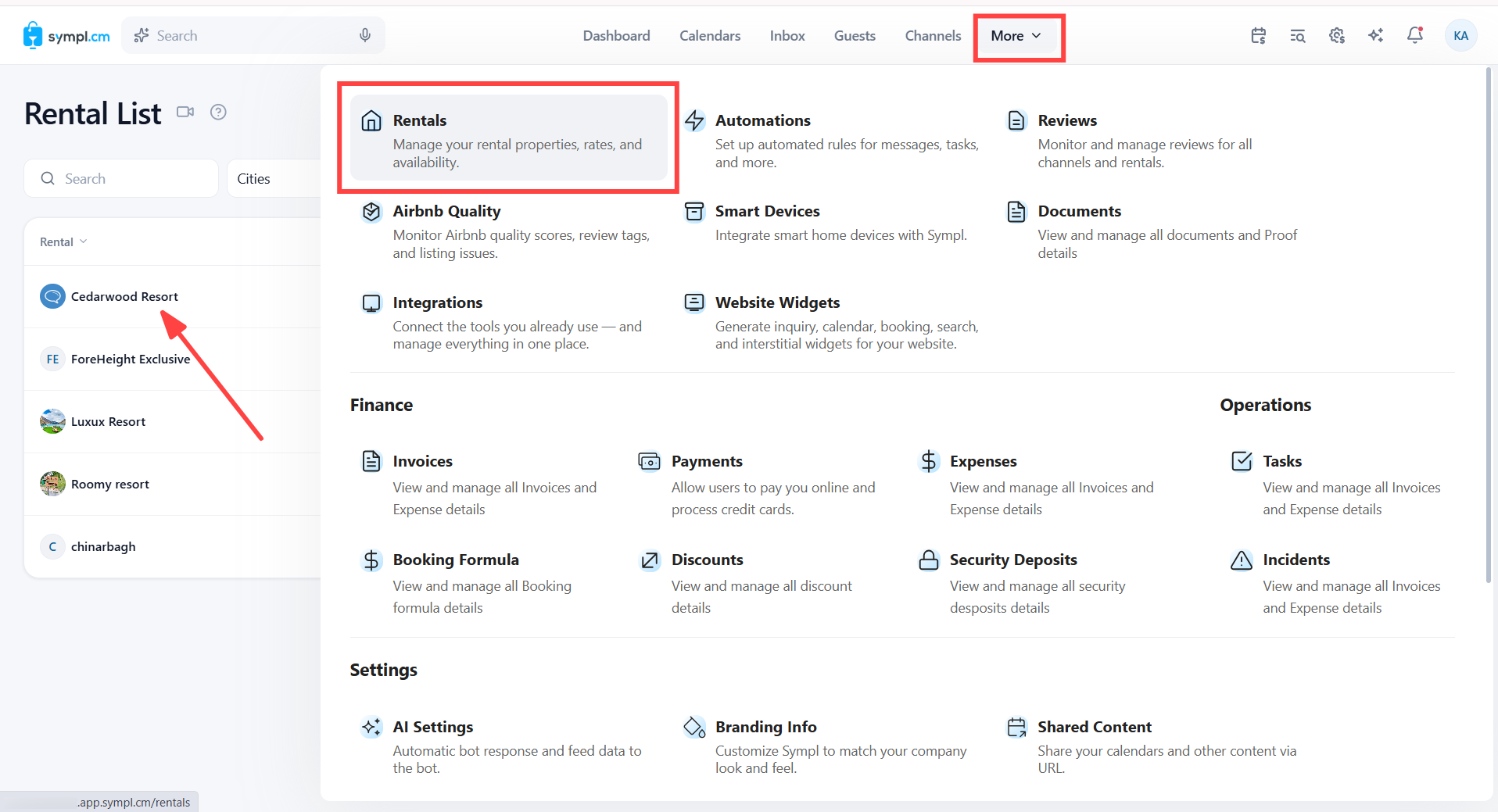
  1. Go to the Rentals tab and click on the rental name to open its overlay.
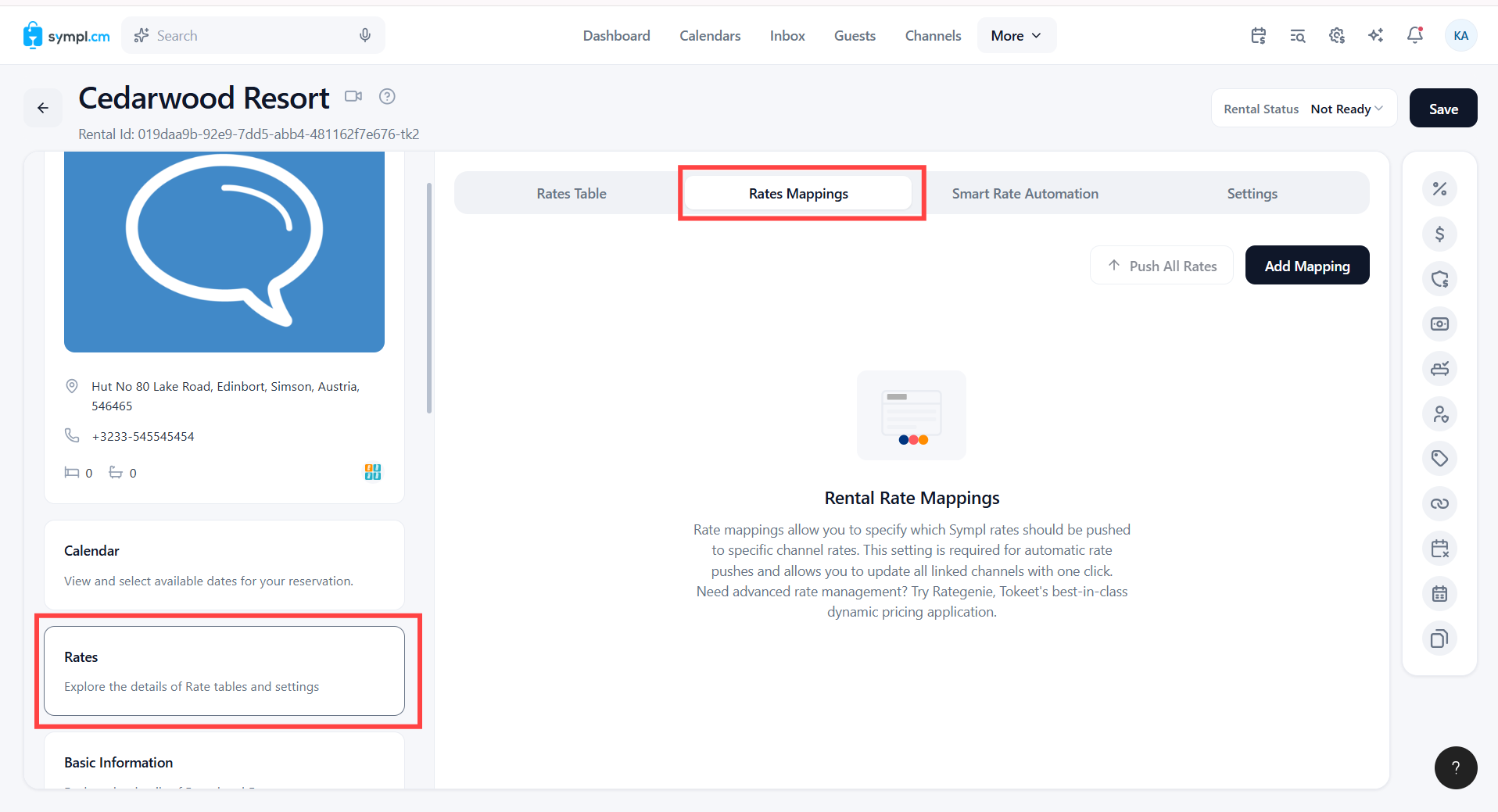
  2. Click "Rates" and select "Rate Mappings".
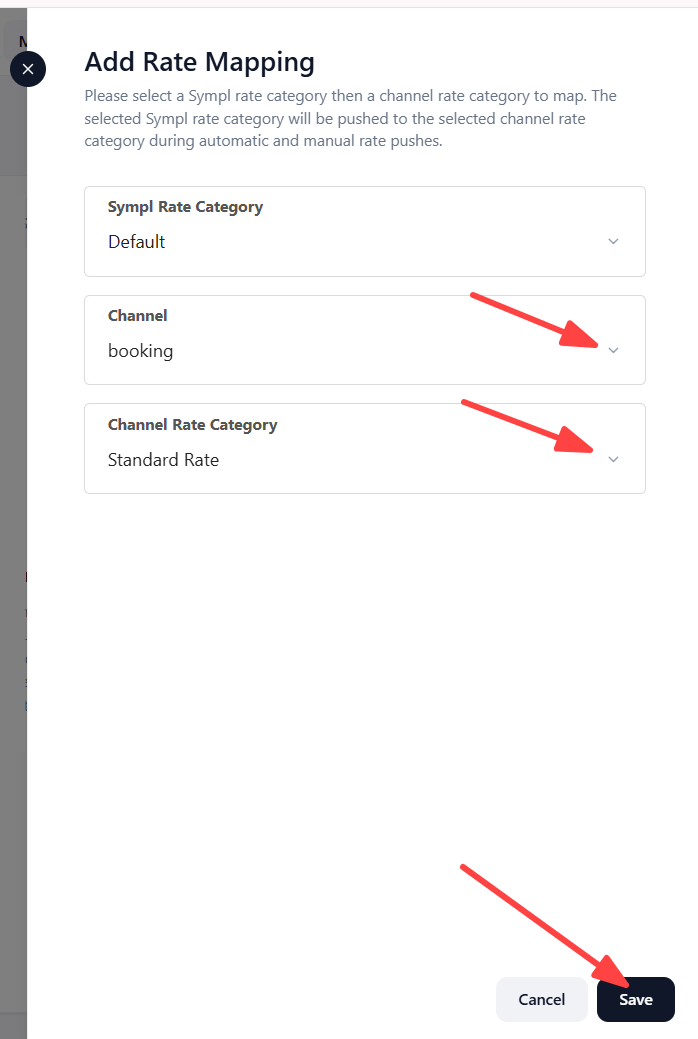
  3. Click + Add Mapping.

  4. Select the Sympl Rate category, the Channel (your connected channels will appear) and Channel Rate Category to create a rate mapping for the channel. Click Save.
    We manage the Standard Rate plans on Airbnb, Booking.com and Expedia, so we recommend selecting this Channel Rate category for these channels.
  5. Toggle on the Auto Sync for the rate mapping. Once Auto Sync is switched on, any changes to rates will be automatically pushed to the relevant channels. The checkbox will display a blue checkmark when selected.
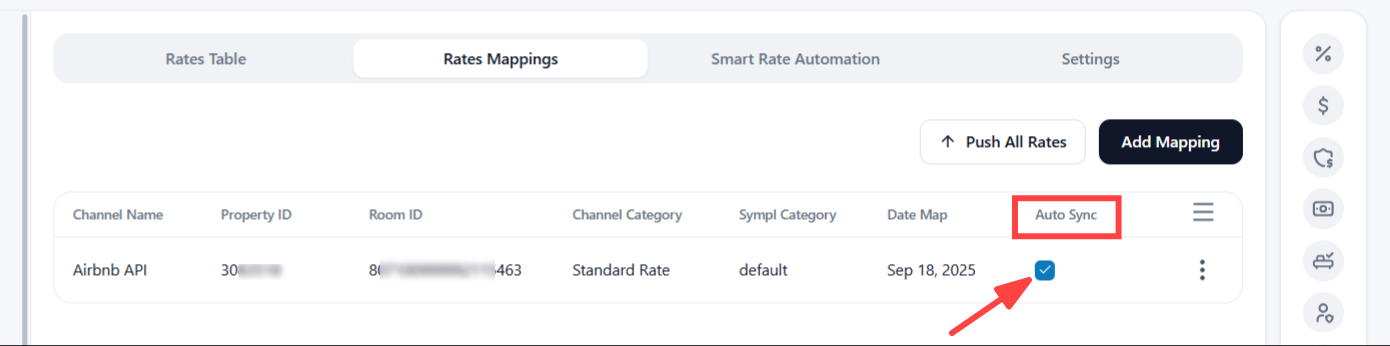
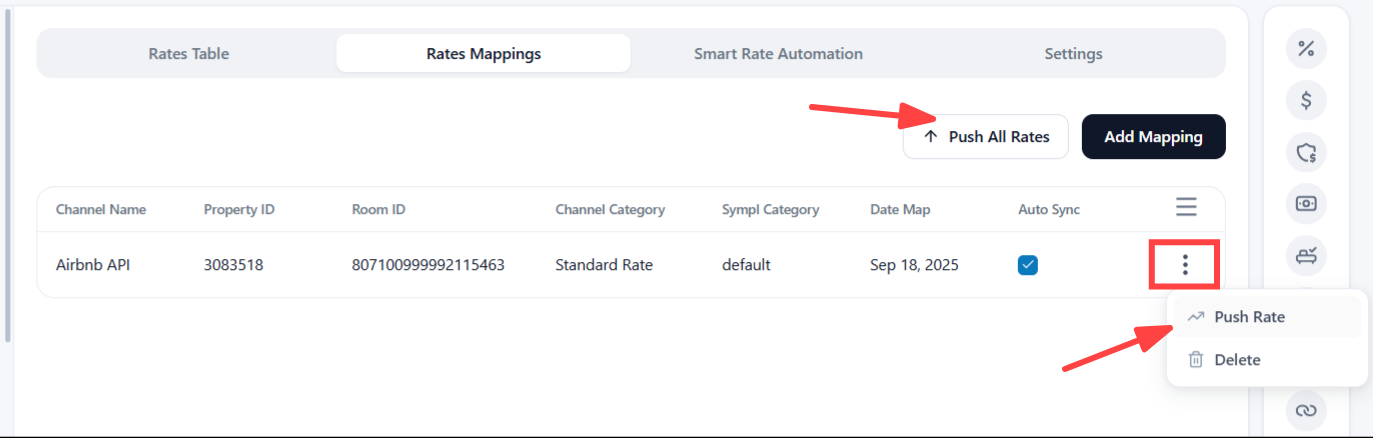
    Once you have created your mappings, a manual push can be done by clicking the Push All Rates button.

    Rates can also be pushed from the 3 dots vertical menu on the right of each mapping.
For more information about Sympl Rate Categories, please see What is a Rate Category?

Base Rates

The second rate type to be aware of is the Base Rate. The base rate is set on your rental rate settings and will apply to all date ranges where there is not a Standard Rate already in place. It is recommended that you use Standard Rates for creating a rate plan due to the more advanced settings mentioned in the section above. For more information on how to set a Base Rate, please see the following article: What is a Base Rate?

As always, please contact us with questions at any time.  We're happy to help.
← Previous Pushing Rates to API Channels In Rates Management Next → Rate Types in Sympl In Rates Management

Related articles

  • How to Set Up Distinct Rates for Channels
  • Troubleshooting Rates
  • Rate Determination Algorithm
How did we do? Thank you! We appreciate your feedback.
Website Community Login
Copyright © 2026 Tokeet Inc.. All Rights Reserved.
No documents match your search.
Searching...